-2.png?width=221&height=60&name=Navigo_Logo_High_Res%20(1)-2.png)
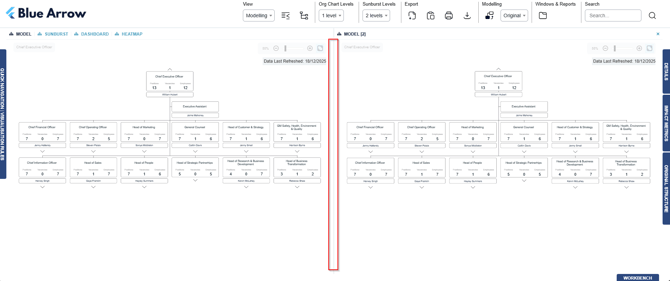
Parallel view splits your screen into two sections, allowing you to work with different parts of the structure side by side. This is helpful when you need to drag an object from one part of your structure to another that would not normally be possible to view on the same screen.
To enable Parallel view, you can do the following:
-
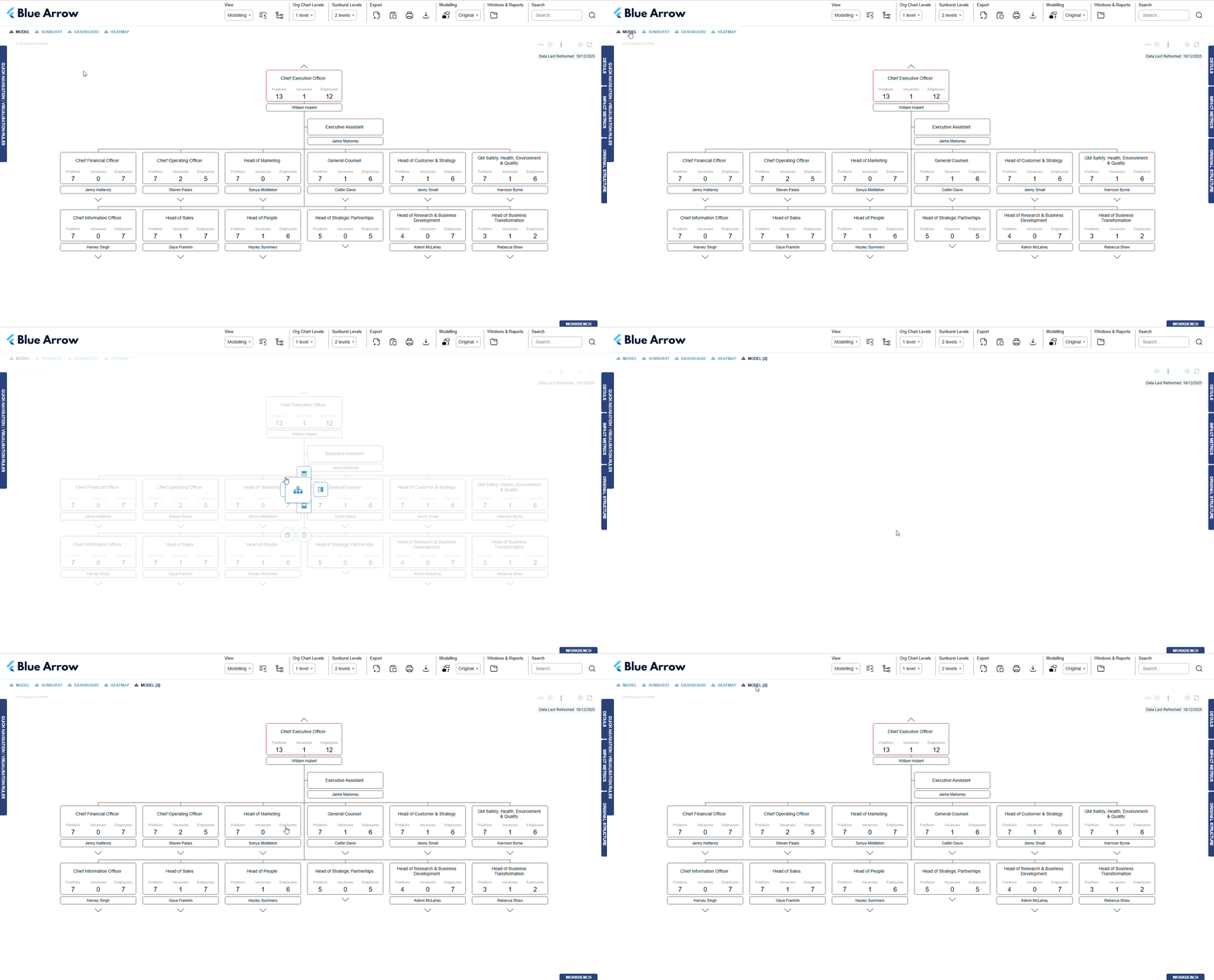
Duplicate the the modelling view by dragging the ‘Model’ view (in the top left) to the centre of the screen and selecting copy.
-
Next, drag the newly duplicated modelling view ‘Model [2]’ to where you want it displayed on the screen.
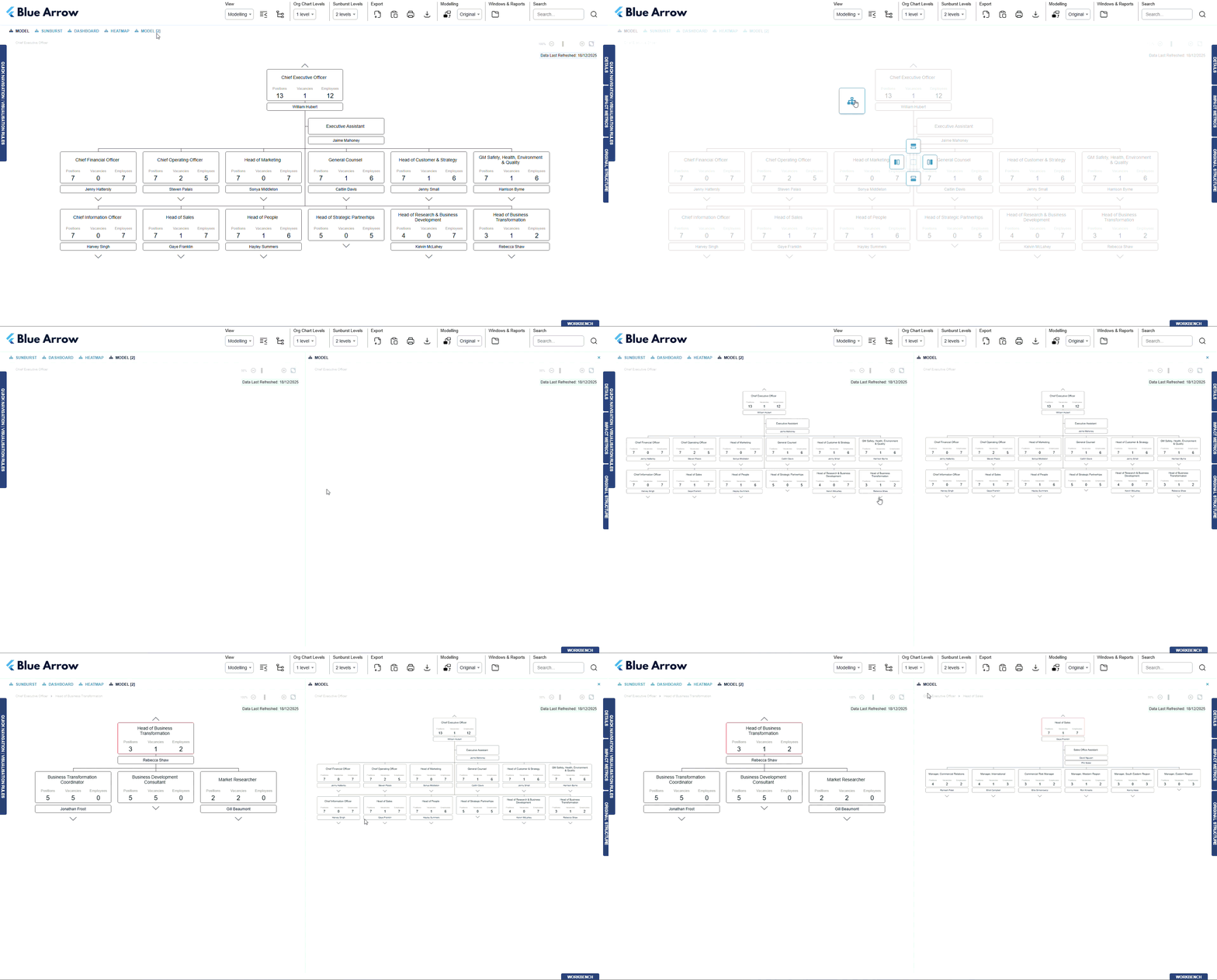
To close Parallel view, click the arrow on the top right edge of your screen.

The parallel view can be opened by selecting the ‘Model [2]’ tab in the right hand side of your screen.
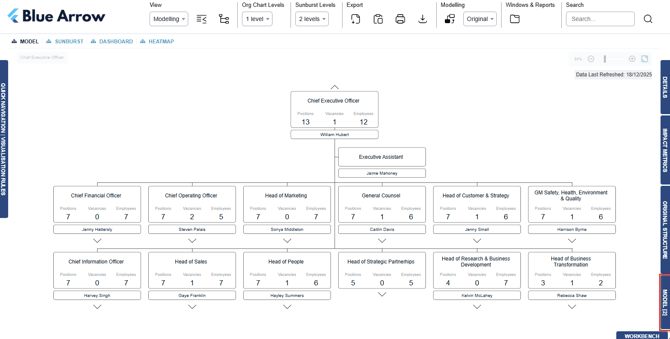
To delete the duplicated view, you can drag the title ‘Model [2]’ down and select the bin icon.
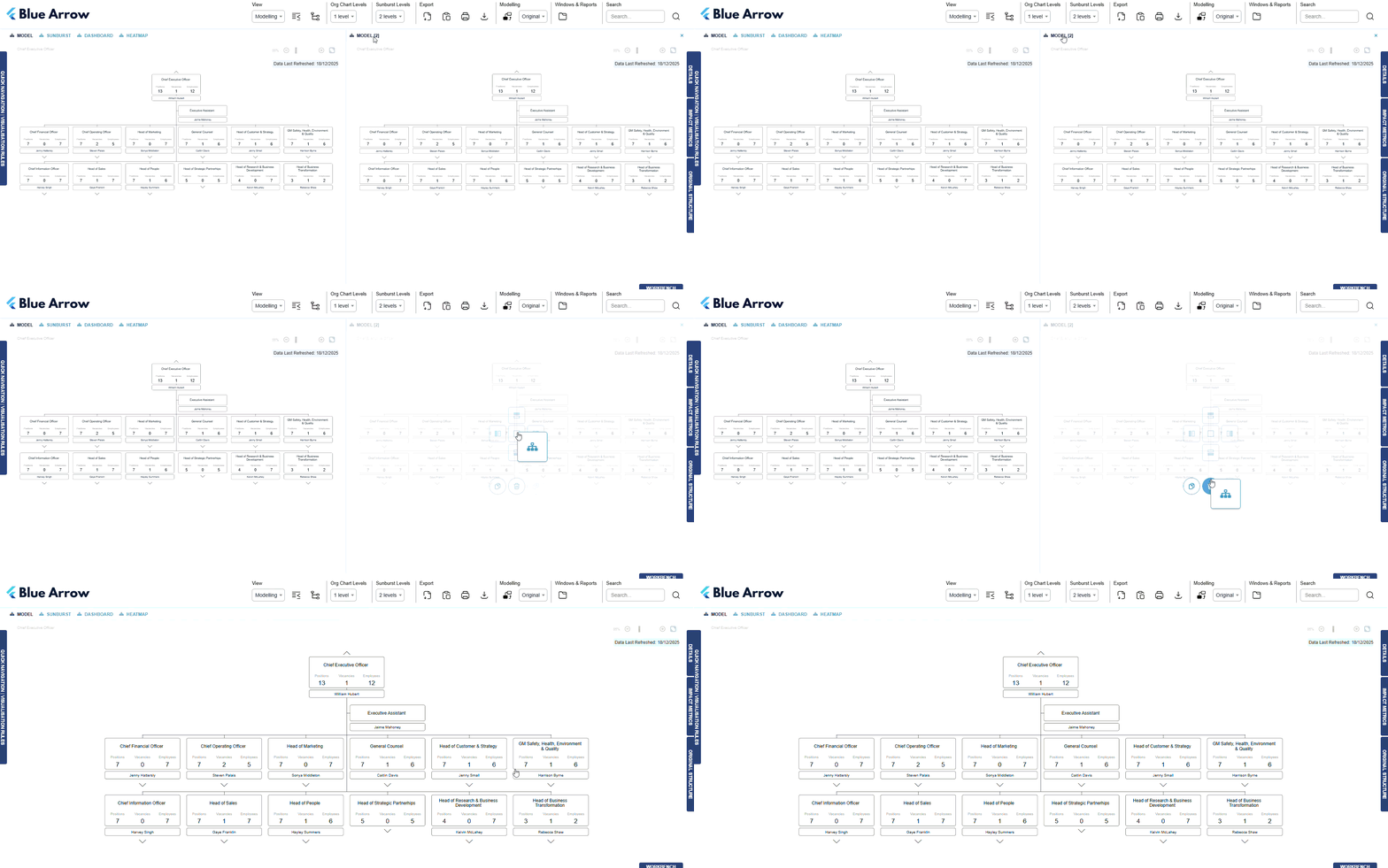
To adjust the size of each window, click and drag anywhere on the gap between the two windows either left or right.