-2.png?width=221&height=60&name=Navigo_Logo_High_Res%20(1)-2.png)
If you need to change an attribute across a group of positions or employees that share a common characteristic, such as a department, location or status, you can use Advanced Search to find all matching records and then apply a Batch Update to change the desired field across all of them at once.
Things to keep in mind
- Double-check your search conditions before running a Batch Update. Changes are applied across all matching records at once.
- Batch Update is best used for structured, consistent changes such as updating a cost centre, department or status across a defined group.
- If you're unsure about the scope of your search results, refine your conditions before proceeding.
How to use Advanced Search to Batch Update
- Ensure that the desired model is selected and modelling is enabled.
- Select the Advanced Search icon in the top right of the toolbar.
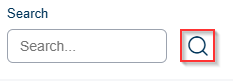
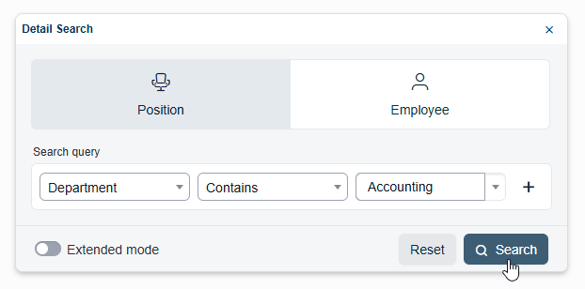
- In the search panel, click the search icon to open the Detail Search window. Select whether you want to search by Position or Employee, then build your search condition using the available fields.
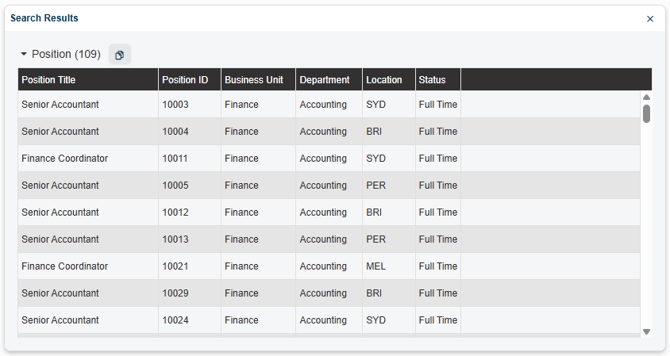
- The Search Results panel will display all records matching your condition. Review the list to confirm the right positions or employees have been returned before proceeding.
- Once the selected records are verified, select 'Batch Update'
-
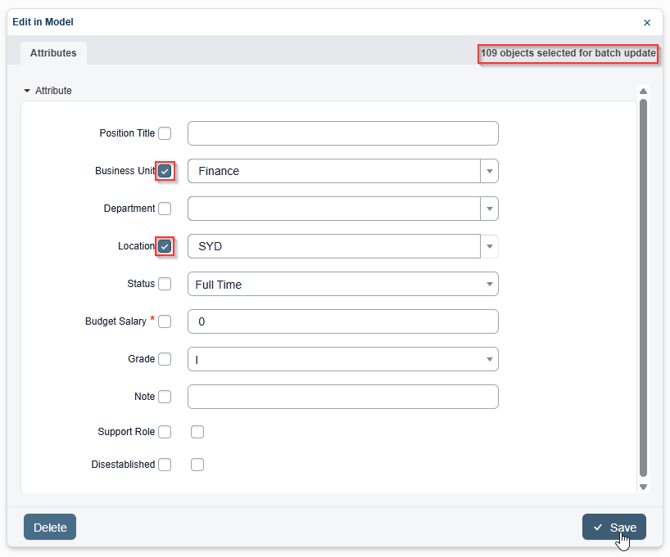
Select the field you want to change and enter the new value. The update will be applied to all records returned by your search. Select Save when you are ready to make the changes.