-2.png?width=221&height=60&name=Navigo_Logo_High_Res%20(1)-2.png)
org.manager is hosted in Microsoft Azure Cloud and delivers the functionality of org.manager as software-as-a-service and can be accessed via the Internet in a browser. Access to the SaaS tenant is protected by single sign-on (SSO) authentication with the customer's identity provider (IDP). The configuration and customization of the charts is carried out by Navigo technical team and the customer only provides the data via an SFTP upload client or access to an externally accessible SFTP server.
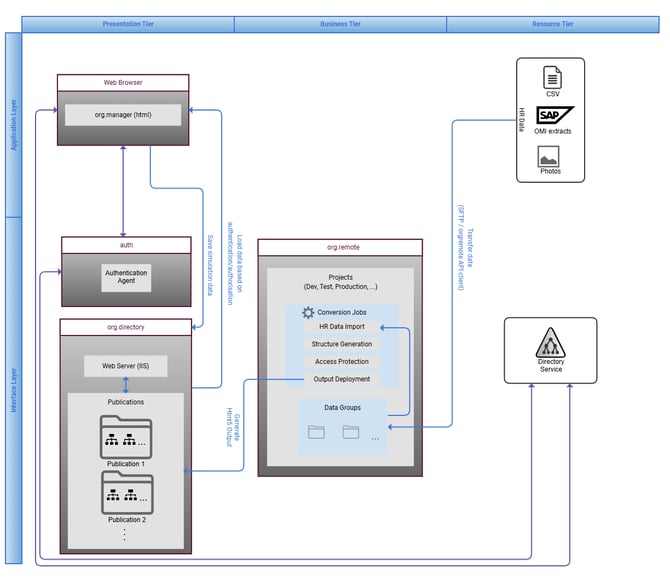
It is a "shared-nothing architecture" and each tenant is physically separated from other tenants. Single sign-on with the client IDP can be implemented using a variety of standards such as SAML2, OAuth, or OpenID Connect.
Components
- org.server - serves the current organizational chart
- org.converter - converts data and configuration (.ocv) into a format (.ows) that can be read by org.server
- org.directory - manages the organizational charts for org.server
- org.remote - manages the configuration files (OCV) and source data (CSV, SAP, etc.) in projects and jobs for org.converter
- Authentication agent - handles the authentication flow between the external IdP (customer, partner, consultant) and issues a JWT
System Requirements
Cloud:
- Identity provider with SAML2, OAuth 2.0, or OpenID Connect
Customer:
- Operating system: Windows, Linux, MacOS, iOS, Android etc.
- Modern web browser (browser must allow session cookies):
- Microsoft Edge (Chromium)
- Google Chrome
- Mozilla Firefox
- Apple Safari
Updating Data
org.remote manages file-based data within data groups. These files can be uploaded manually or via SFTP. This SFTP implementation offers both directions, whereby the customer can upload files to the client's SFTP server using an SFTP client of their choice, or the system can retrieve data via SFTP from an SFTP server provided by the customer.
In addition to this file-based update, various web services can also be used.
SFTP
SFTP (Secure File Transfer Protocol) works via SSH (Secure Shell) and provides secure file transfer by encrypting the data during transfer, thus protecting it from interception or manipulation.
The SFTP service can be accessed via a separate URL and a user-defined port. The final port is specified and confirmed at the time of tenant deployment. The default port 22 is not available for security reasons. The following restrictions apply to connecting and uploading data:
-
Authentication is limited to the use of an RSA certificate (self-created or provided by Navigo). The RSA certificate must be at least 4096 bits.
-
Username and password are not supported.
-
If a ZIP archive is used, it must not be password-protected
-
Image files can only be uploaded in a ZIP file or using Microsoft Graph
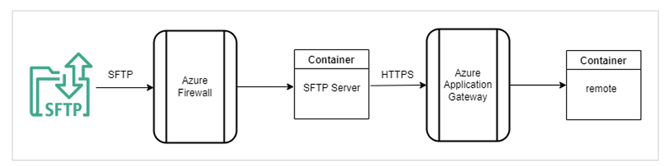
The data can be uploaded to the org.manager platform via an SFTP server. The SFTP server can be requested and is not provided automatically. A specific SFTP client and does not recommend one. The data can be stored in a zipped folder (*.ZIP). It is also possible to upload CSV, TXT, OMS, and OMZ files. Images must be uploaded in a ZIP archive.
There is no limit to the amount of data or files that can be uploaded. However, it should be noted that uploading 1,000 individual files of 1 MB each takes significantly longer than uploading a single ZIP file of 1,000 MB. Existing data in the data groups will not be deleted, but existing files will be overwritten during the upload.
SFTP upload
1. The customer should compile all required data, which should be in the same data group, preferably in a ZIP file (CSV, TXT, OMS, and OMZ files can also be uploaded).
-
The name of the file is irrelevant, but should be same
-
Multiple files can be uploaded to a data group.
-
Existing files will be overwritten.
-
New files will be added.
-
Old files will be retained.
-
2. The customer uploads the file via SFTP to the designated data group folder.
-
Data can only be stored in second-level folders (=data group folders; e.g., "/Charts/Pictures").
-
The server "recognizes" the upload and immediately begins the next step as soon as the file upload is complete.
3. The file is transferred to org.remote via SFTP using an encrypted connection.
-
The "destination" of the file is determined by the upload folder.
-
The first level specifies the project.
-
The second level or the folder name itself specifies the data group.
-
4. After the file has been transferred to the remote station, it is immediately deleted from the SFTP server.
-
A ZIP file is automatically unzipped by org.remote.
-
"Synchronization" is not possible