-2.png?width=221&height=60&name=Navigo_Logo_High_Res%20(1)-2.png)
Overview
The Skills view adds a capability layer to the org chart. For every position it shows the tasks the role is responsible for and the capabilities it requires. For every employee it shows the skills, qualifications and credentials they hold. Requirements are matched against the incumbent, so gaps are visible straight away.
All highlights and coverage colours are calculated over the part of the structure you are viewing. Select any position and every view narrows to the positions reporting up to it. The view is designed for HR, workforce planning and capability teams, and for managers who need to know whether their team is equipped for the work.
Objectives
- Show what each role needs and whether the incumbent has it.
- Find who in a part of the business holds a particular skill, qualification or credential.
- Identify where in the structure capability is thinnest.
Required data
To get the most out of this view, the following data is recommended:
- Tasks for each position
- Required capabilities for each position
- Capabilities held by each employee, with their type (skill, qualification or credential)
- Expiry dates for credentials
Capability types
Every capability is one of three types, each with its own icon:
- Skill: something the person can do. Assessed internally, with no issuer and no expiry.
- Qualification: a formal award from an accredited body. Does not expire.
- Credential: a licence, registration, certification or clearance, where a third party vouches for the person against a defined standard. Usually expires.
Credential expiry
A credential expiring within the next 90 days shows an amber Expiring icon. A credential past its expiry date shows a red Expired icon. Hover over the icon to see the expiry date.
Views
The Skills view has three tabs above the chart area. All three share the same root position, so drilling down in one carries across to the others.
- Org Chart: read one position or one person in detail.
- Sunburst: see a pattern across a whole branch at once.
- Requirements Coverage: see which parts of the structure are well covered and which are not.
Org Chart
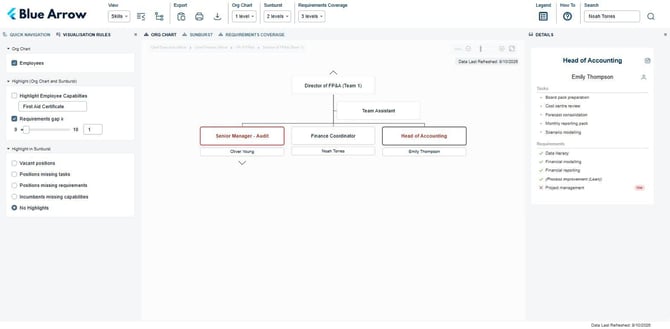
Each position card shows the position title, with the incumbent's name underneath. A dashed border means the position is vacant.
Use the chevron below a card to drill into that branch, and the breadcrumb above the chart to come back up. The Org Chart dropdown in the toolbar sets how many levels are shown at once.
Position tasks and requirements
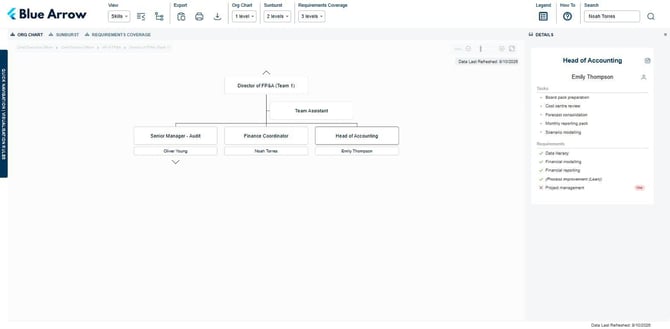
Click the position card, then open Details on the right. The panel lists the tasks the role performs and the capabilities it requires.
- A green tick means the incumbent holds the requirement.
- A red cross and a Gap pill mean they do not.
Employee capabilities
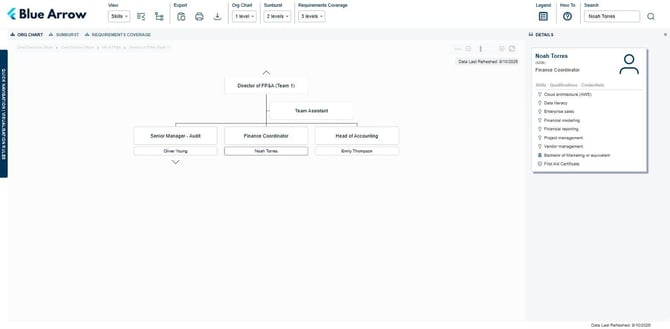
Click an employee's name in the org chart (below the position card). Details then lists every capability the person holds, grouped under skills, qualifications and credentials and marked with the matching icon.
Visualisation Rules
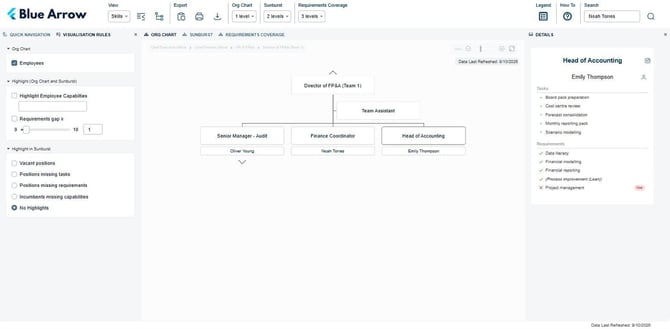
Open the side panel on the left and select Visualisation Rules. The settings are grouped into three sections:
- Org Chart: Employees shows or hides incumbent names. This is useful when sharing or exporting a de-identified chart.
- Highlight (Org Chart and Sunburst): picks out matching positions on both the org chart and the sunburst.
- Highlight in Sunburst: picks out one condition at a time on the sunburst only.
Highlighting capabilities
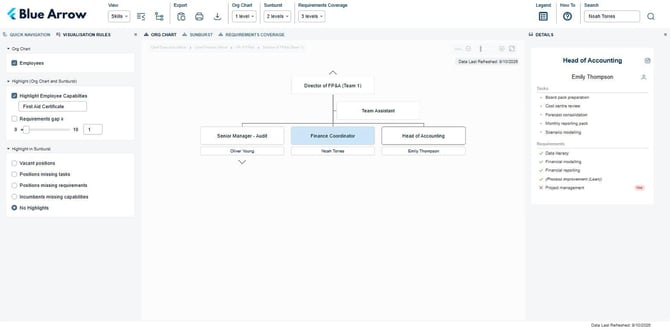
Highlight Employee Capabilities picks out every position whose incumbent holds a named capability. Start typing the capability name, select it from the suggestions, then tick the box to apply it. Matching positions are shaded blue.
This works for skills, qualifications and credentials. The same control answers both "who can do this" and "who is licensed for this".
Highlighting requirement gaps
Requirements gap ≥ picks out every position with at least the chosen number of unmet requirements. Set the number with the slider or type it in, then tick the box. Matching positions are outlined and titled in red. Raise the number to narrow the view to the largest gaps.
Sunburst
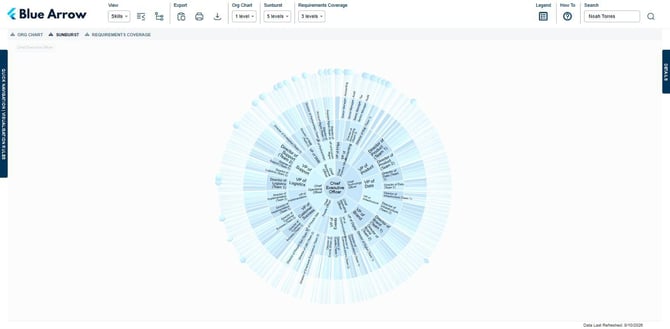
The sunburst shows the whole structure as rings. The root position sits in the centre and each ring is one level further down. The Sunburst dropdown in the toolbar sets the depth, up to five levels.
Use it to spot a pattern across a branch in one picture, rather than clicking through cards.
Sunburst highlights
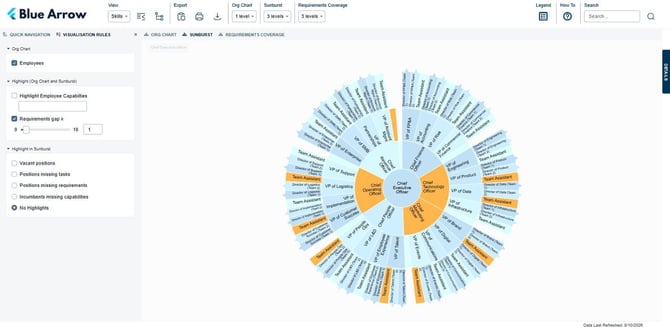
The Highlight in Sunburst options pick out one condition at a time:
- Vacant positions
- Positions missing tasks
- Positions missing requirements
- Incumbents missing capabilities
- No Highlights
Positions missing tasks and Positions missing requirements are data quality checks. A position with no tasks or requirements cannot be assessed, and it distorts any coverage figure above it. Run these checks before relying on the coverage view.
The two Highlight (Org Chart and Sunburst) options also apply here. Matching segments are coloured orange.
Requirements Coverage
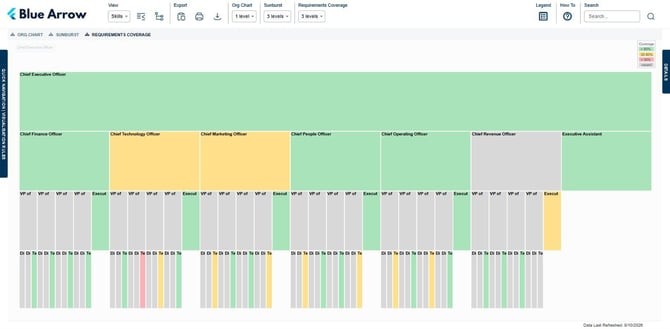
Coverage is the share of a position's requirements that its incumbent holds. This view shows the structure as stacked rows, one per level, with the root across the top and each position's direct reports underneath. Each position is coloured by its coverage:
- Green: more than 80% of requirements met
- Amber: 30% to 80% met
- Red: less than 30% met
- Grey: position is vacant
The Requirements Coverage dropdown in the toolbar sets how many levels are shown.
Vacant positions
Vacant positions stay in the structure. They have a dashed border on the org chart and appear grey in the coverage view. They are not counted as uncovered, so a hiring gap does not read as a capability gap.
Legend
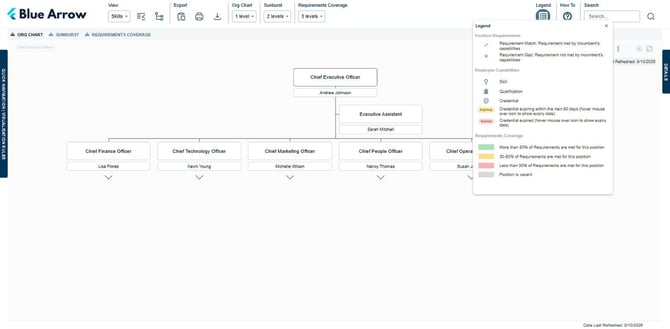
Select Legend in the toolbar to open a key to the icons and colours used in this view. It covers the capability icons, the expiry pills, the requirement ticks and crosses, and the coverage colours.
Search and navigation
Search in the toolbar finds people, positions and capability names. Searching for a capability returns the positions connected to it. Select a result to jump to that position on the chart.
Quick Navigation, the other tab in the left panel, shows the position hierarchy as a collapsible tree. It stays in step with wherever you are on the chart.
Export
The Export buttons in the toolbar let you copy, print or download the current view.