-2.png?width=221&height=60&name=Navigo_Logo_High_Res%20(1)-2.png)
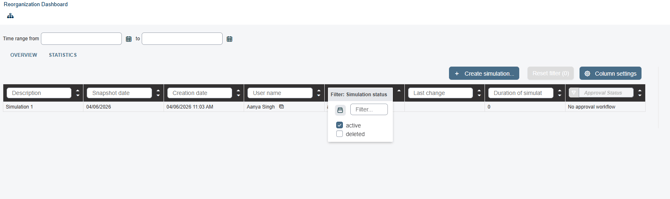
The Overview Window is the central model management portal. Here you create new models, manage existing models, review audit information and check model completion targets.

The central screen provides a list of all models that are accessible to the current user.
Apply filters on the column categories to find your models that meet specific criteria.
When you find & select the relevant model, you will find a range of actions appear on the right hand side of the overview panel. These allow you to perform a range of actions on your model.
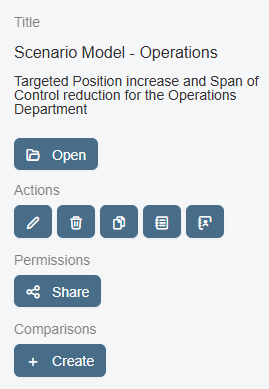
Model Actions
|
Icon |
Function |
Additional Information |
|---|---|---|

|
Edit Model |
Allows you to update the name, comments and language of the Model. |

|
Delete Model |
Deletes the model after confirmation. This is not reversable so please be certain you have the correct Model. |

|
Copy Model |
Allows you to make an exact copy of the selected Model. You can choose to also copy set access permissions. |

|
Create Simulation Log |
This generates a list of all actions performed on the model. A ‘Who, What, When’ for all changes made in the model. |

|
Open Audit Log |
This opens the audit log, which details session details for each user with relevant timestamps. |
Model Permissions
To share your model with other collaborators, you can add individuals and set permissions using the ‘Share’ button from the overview window.

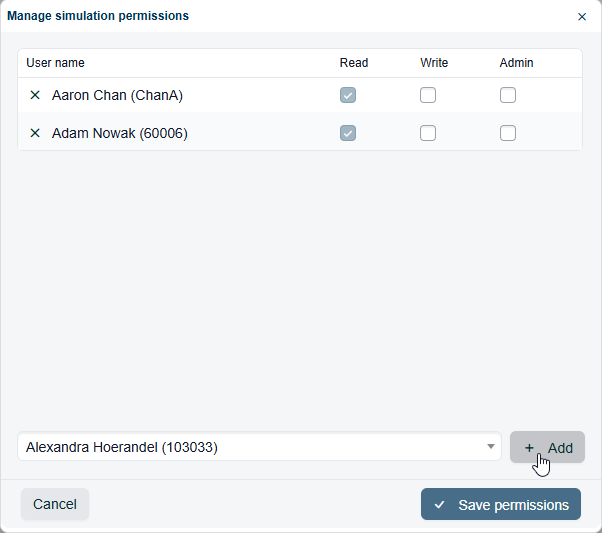
Simply select a user from the search list & select ‘+ Add’:
-
Read access - Can only view the model
-
Write access - Can view and edit the model
-
Admin access - Can view, edit and delete the model.
Note: You cannot share a plan with a user who is not authorised to access Modelling.
Model Comparisons
You can also generate Model comparisons from the Overview Window. Comparisons compare the selected model against a set data snapshot (either pre-loaded or not).
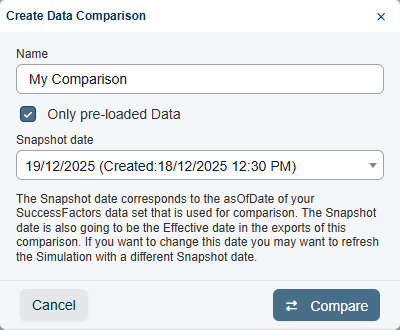
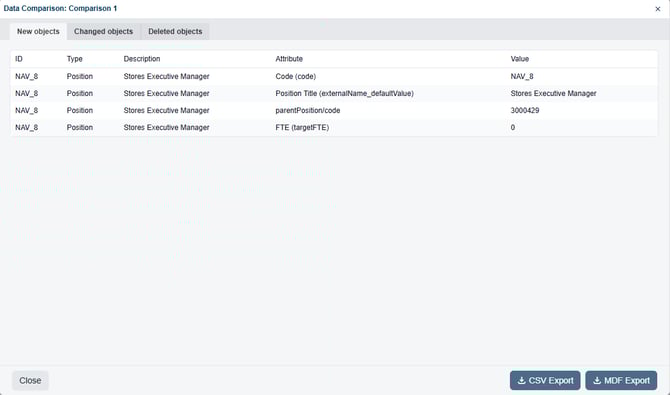
This will generate a new ‘Comparison’ which you can find nested under your Model in the Overview Panel. When opened, this will display a list of new, changed and deleted objects that differ from the compared data snapshot. This can be exported to CSV of MDF format.
Statistics View
In the top left of the Overview Window, you can toggle to the modelling statistics dashboard.
This displays data regarding a specific users modelling progress, including completion rate & outstanding models.
Viewing Active Simulations
As simulations are created and deleted over time, all of them remain visible in the overview window. You can filter the list to display active simulations only.