-2.png?width=221&height=60&name=Navigo_Logo_High_Res%20(1)-2.png)
Introduction
Once proposed structure has been drafted and finalized in org.manager, it is possible to generate an export using a data comparison which can be imported into SuccessFactors to write back the changes. The data comparison compares the changes on objects and attributes with the data in SuccessFactors at a point in time.
This page describes the steps required for the writeback process.
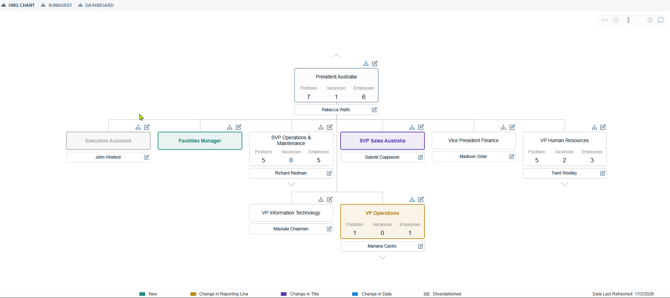
In the example we will be performing writeback for the following changes in our simulation (proposed structure)-
Prerequisites
These actions are required to prepare the extract (MDF zip file) which will be imported into SuccessFactors.
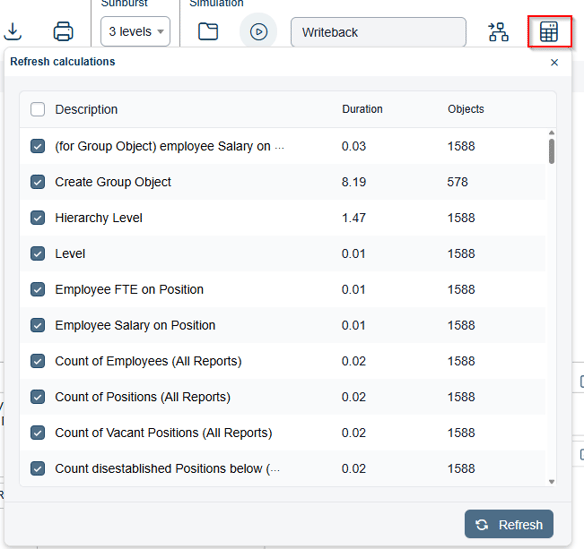
Refresh calculations
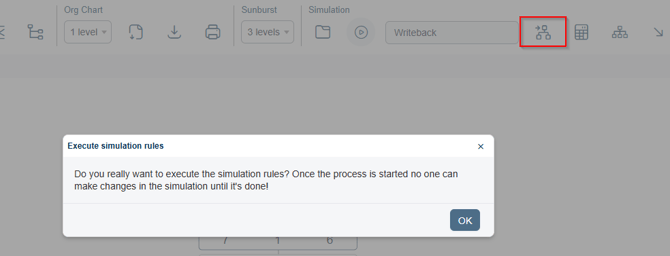
Execute Simulation Rules
This feature inherits attributes from one object to another, usually parent to child objects. The rule is triggered by an action in the simulation like create, update or move
Refresh Simulation
The proposed structure takes time to come together, however, the underlying data on which the proposed structure was built would have changed. This feature refreshes the underlying/current data and applies the proposed actions to the new data set.
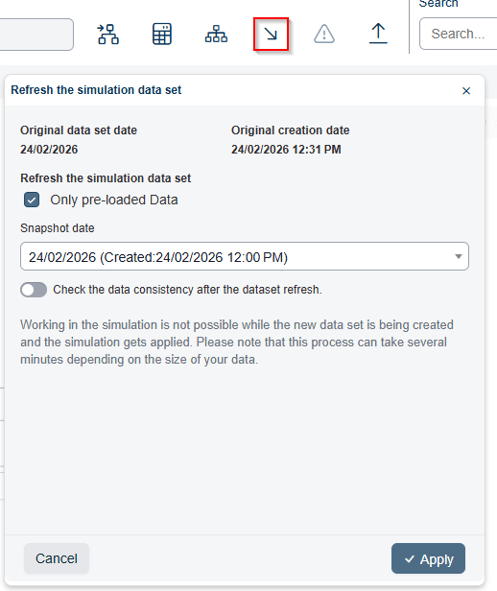
In a scenario where the changed object cannot be found in the base data, org.manager will prompt an option to fix the issue. Once all such conflicts are resolved, the new data set will be applied to the simulation.
Comparison Report
To generate a Comparison report, open the Overview window and choose the simulation. Then click on Create under Comparisons.
Enter a name for the comparison and select the snapshot date. The date selected here is basically the effective date of writeback-
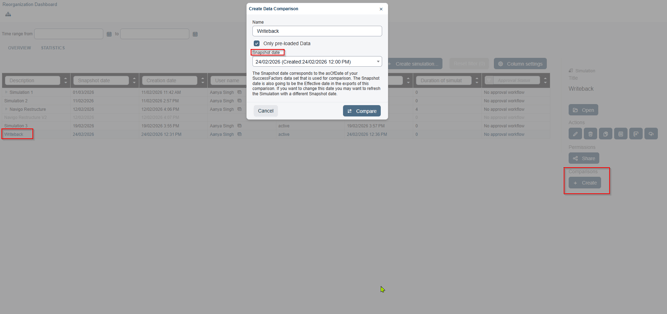
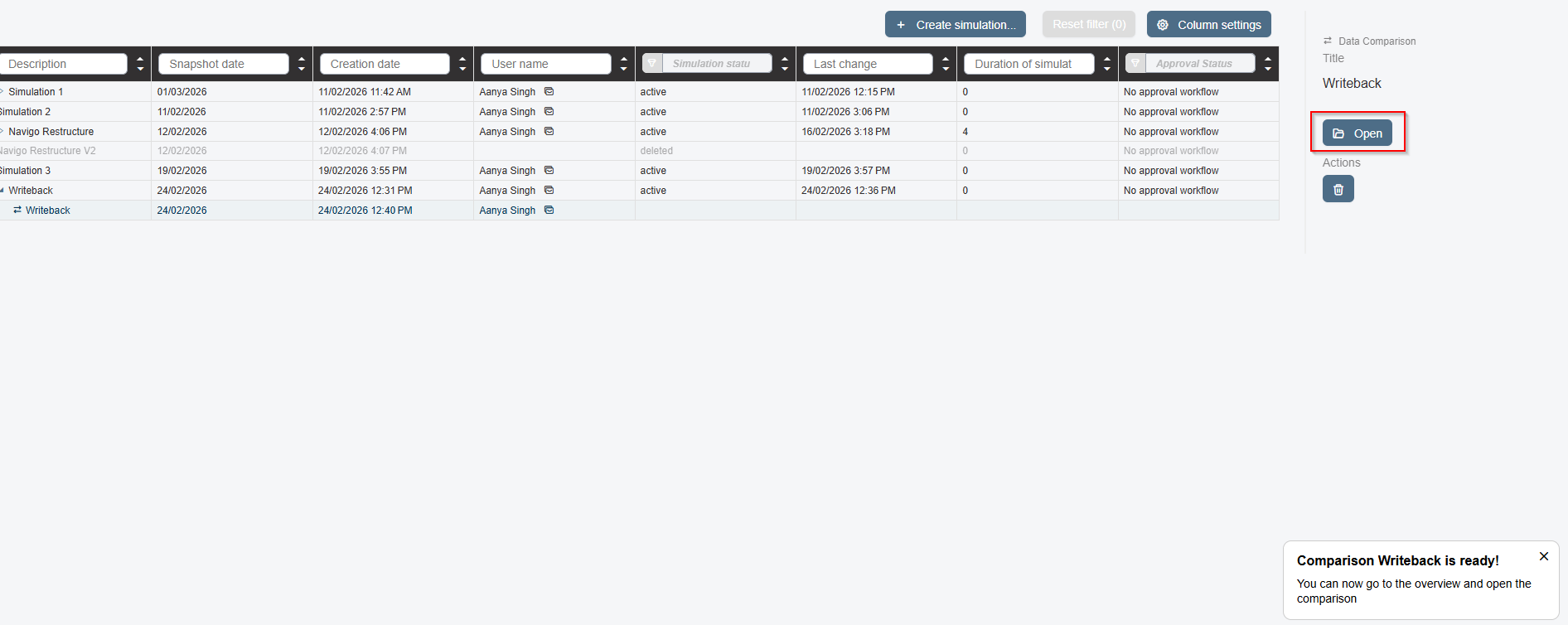
Once the comparison is complete, click on Open to view the report-
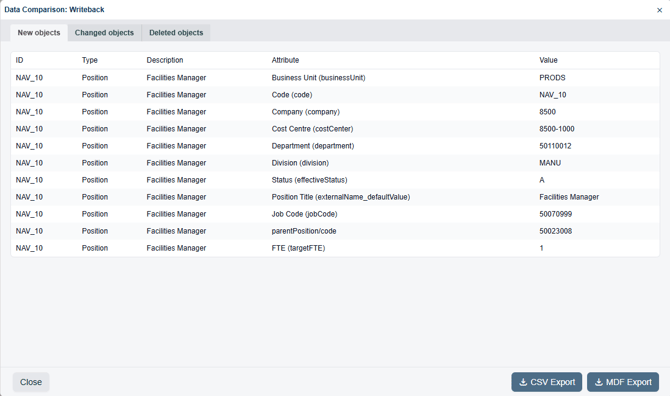
The objects are classified under New, Changed and Deleted objects-
MDF Export
To generate the export, click on MDF Export to generate an extract of changed objects. The zip file contains these files:
-
import.properties - import configuration
-
a csv file per object type (departments, job classification, positions)
-
import_sequence.csv - file that specifies the order of the files to be imported
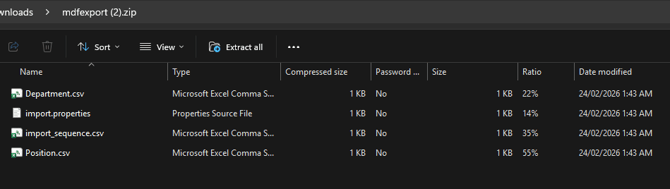
The individual object file basically contains the records that have changed along with the new field values-

SuccessFactors Import
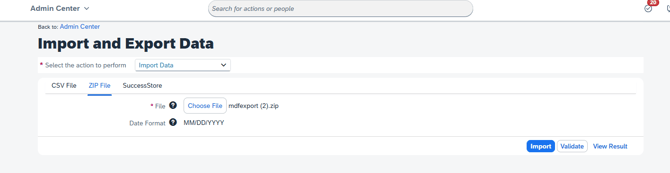
Navigate to Import and Export Data section in SuccessFactors and select Import Data to import the zip file which was exported in the previous step-
Validate
Validate option is available to confirm the records before importing into SuccessFactors. This also provides counts of total number of records being imported along with number of passed and failed records.
This option can be leveraged as the final checkpoint to resolve any issues-
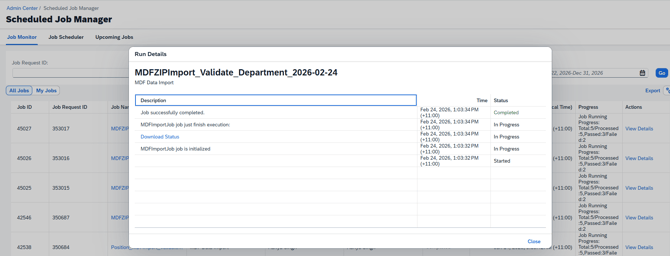
Import
Clicking on Import will import the records into SuccessFactors-
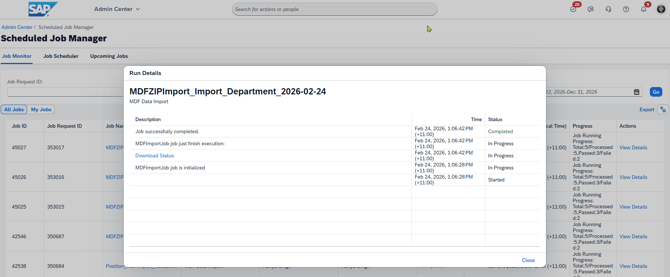
Data Validation
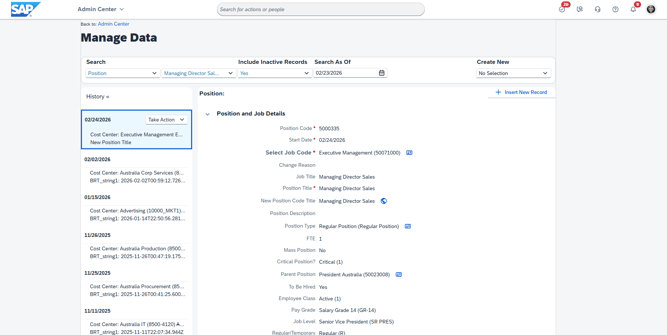
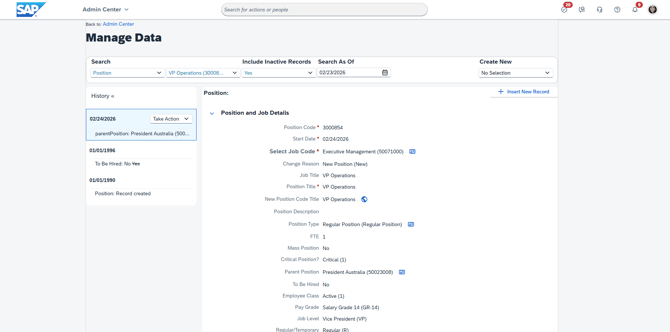
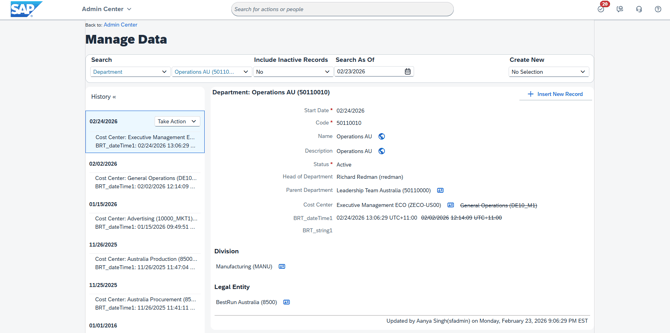
In Manage Data the records can be double checked to confirm the writeback process.