-2.png?width=221&height=60&name=Navigo_Logo_High_Res%20(1)-2.png)
A Staging Area can be implemented for Modelling in org.manager.
The purpose of this Staging area is to put objects on hold for later use in your simulation or even create new objects in your Staging area, that later on can be moved into your structure.
Objects that are moved to the staging area are not included in the metrics of your org chart.
General functionalities
-
Move objects that you want to ‘park’ in the staging area into the correct field ('drop here' box).
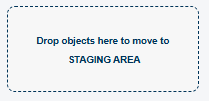
Do not move the structure’s top hierarchical object (root object) into the staging area.
This will move your whole structure to the staging area and lead to undesired behaviour.
-
You can also move positions below objects that already are in the staging area or employees on positions that already are in the staging area.
-
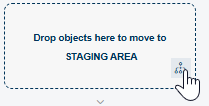
To create a new position in your staging area, click on the ‘Create’ icon. The position will be created on the top level of the Staging Area structure and can be moved to anywhere in the structure.
-
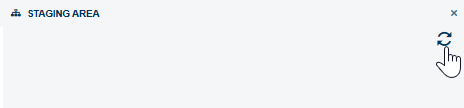
After moving objects to the Staging Area, make sure to refresh the Staging Area (to make sure all objects are displayed and numbers are correct) by clicking the refresh button in the top right corner. Once the calculations are refreshed, you can just close the overview that popped up for the refresh.
-
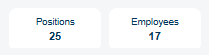
Your Staging Area box will show you how many objects are currently in your staging area (updates on refresh)
-
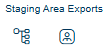
In the toolbar, you can find a dedicated area named Staging Area Exports. From here, you create a CSV report that contains all objects that are currently in your Staging Area, for positions as well as for employees:
You can also access these reports via the regular data export dialog. If you do this, always select the ‘entire company’ option. The ‘root object’ option will result in empty or incorrect reports.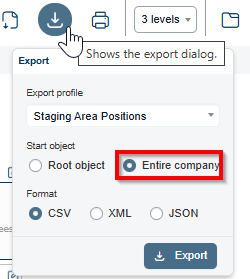
Specifics for Substructure Simulations
-
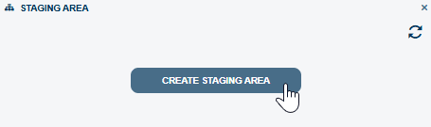
After creating a substructure Simulation, the Staging area must be created initially, after simulation was created. This step only needs to be done once:
-
After this, make sure to refresh the Staging Area, as well as after moving objects to it.
-
The rest works as explained above.