-2.png?width=221&height=60&name=Navigo_Logo_High_Res%20(1)-2.png)
The most intuitive method of interacting with your model is using your mouse. You can select & drag objects (position/employees) throughout your chart, allowing you to alter position holders, reporting lines & position assignments.
As you continue to use the modelling tool, actions will become more fluent and natural.
A large reason for this is the use of hotkeys - which include:
|
Shortcut |
Key (PC) |
Key (Mac) |
Functionality |
|---|---|---|---|
|
Copy |
Ctrl + C |
⌘ + C |
Copies an object and it’s attributes. |
|
Cut |
Ctrl + X |
⌘ + X |
Copies an object and it’s attributes, removing it from it’s original location once pasted. |
|
Paste |
Ctrl + V |
⌘ + V |
Pastes the object store in the clipboard under the current selected chart object. |
Drag & Drop
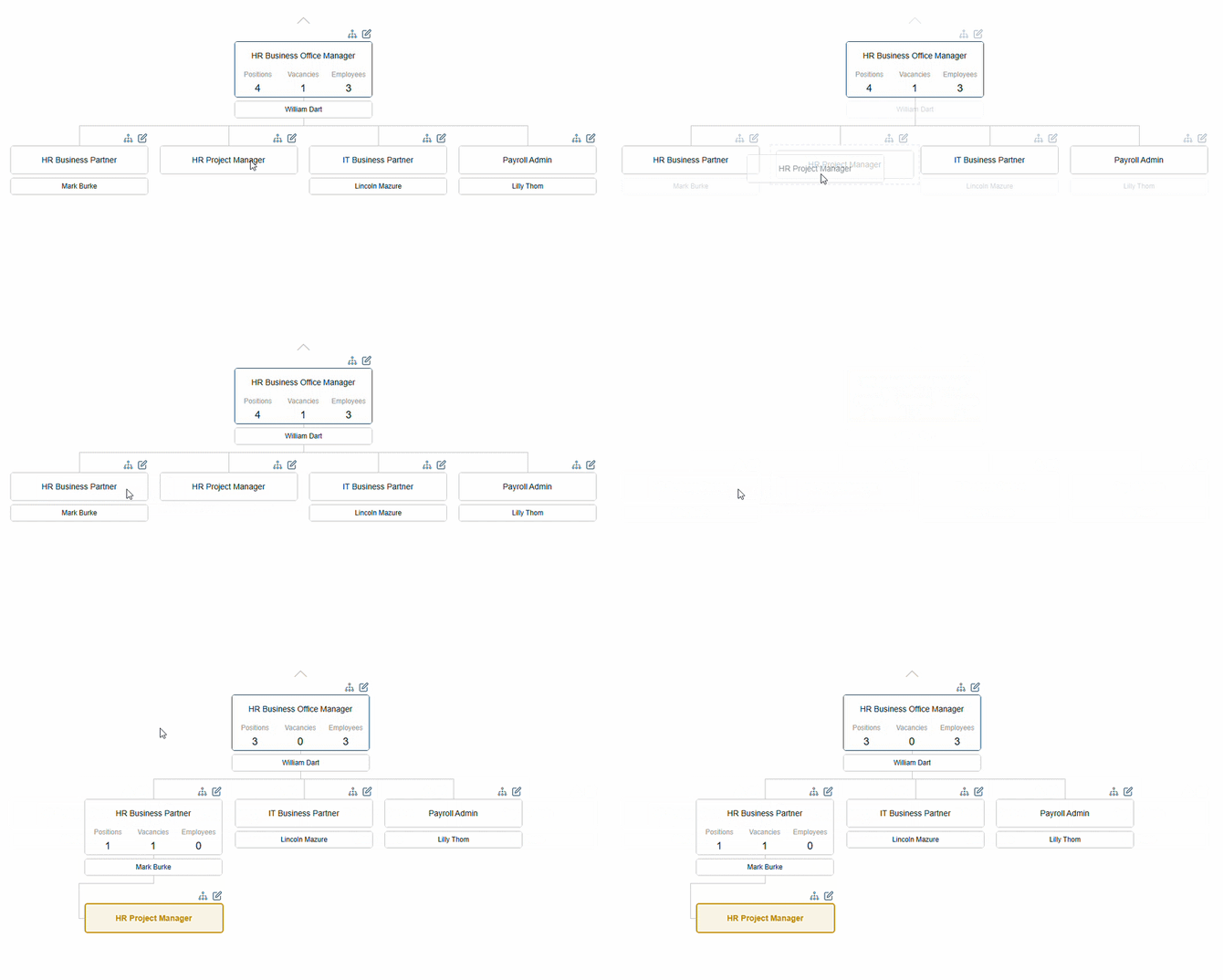
When dragging & dropping a object within a structure, it is important to note that the entire structure is moved as well.
Below is an demonstration of how simple the drag & drop functionality is: