-2.png?width=221&height=60&name=Navigo_Logo_High_Res%20(1)-2.png)
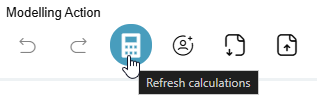
This refresh button will update all the corresponding metrics. Only the metrics you have permissions to access (i.e. salary) will be updated and shown in the Details Panel.
To view these updates, click on the Details panel on the left side of your screen. All changes will be under “Current vs Proposed” and “Change Summary”.
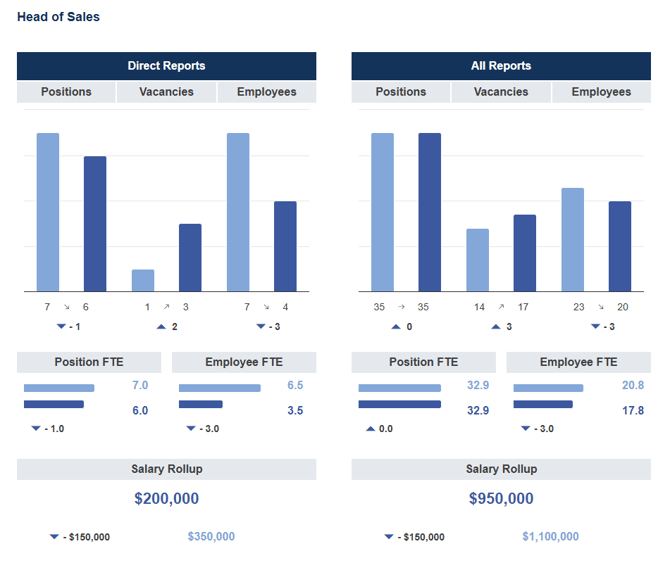
The below is an example of key metrics that are generally configured, you can include any metric you wish such as FTE, tenure, diversity.
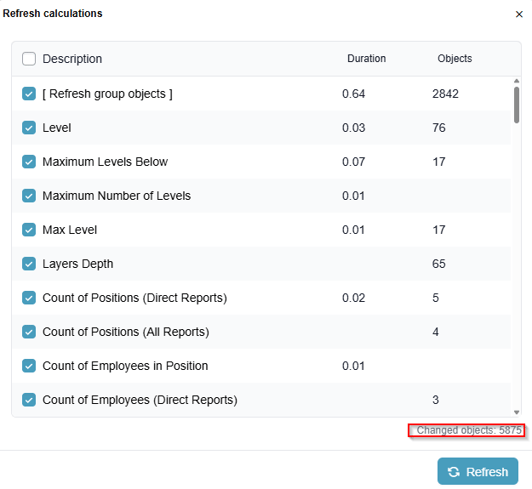
This will present the calculation refresh menu, where you can set what calculations you want or don’t want to refresh. You will see the counts for how many objects were changed and what specific attribute.
You can view the impact your model has had by selecting ‘Impact Metrics’ on the right of the screen.