-2.png?width=221&height=60&name=Navigo_Logo_High_Res%20(1)-2.png)
Mass Imports (Bulk Updates) are used for adding data, replacing data or deleting data in your Model. There are many uses cases that would facilitate the use of Mass Imports, such as:
-
Updating data of objects with a shared attribute (e.g. update Cost Centre names & numbers of all positions with a shared Department).
-
Importing a CSV containing all external contractor positions into your primary structure.
-
Replacing entire position records with alternate or corrected records (replaces all attributes).
-
Importing changes to reporting lines.
The Mass Import menu can seem relatively overwhelming at first, however this guide will instruct you how to utilise and understand it’s functionality.
Prerequisites
You must have a CSV file that contains a list of objects you wish to change, add or delete.
You can use mass imports to change editable objects such as Departments, Business Units, Divisions or Positions.
The CSV file must contain the following to successfully import:
-
Unique ID of the object you wish to operate on (e.g. Position ID/Code) or the specific shared field if targeting multiple objects (e.g. Department Name).
-
A header row for column mapping.
-
A column containing technical parameters, if using them.
How to Import Data
To open the ‘Mass Import’ menu, select the upload icon from the toolbar.

This will open the Mass Import menu, where you can select the CSV file you wish to use for the import:
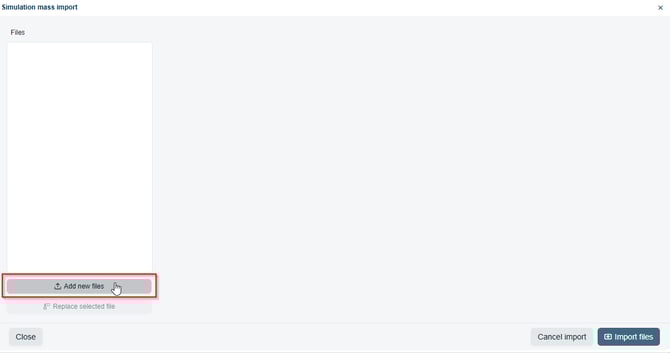
Once you have selected the appropriate CSV file, you will be presented with the import configuration menu as show below:
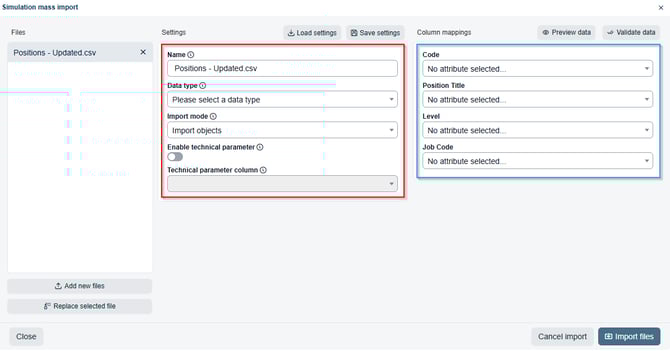
Settings
Before you configure the column mapping (highlighted in blue), you will need to change the settings to align with the purpose of the mass import. The following settings can be configured:
Name
-
Here you can specify the name of the file import. This will not alter the contents of the selected CSV file, but provides an opportunity to use a logical name that will be referenced in the data validation messages (e.g. People & Culture Cost Centre Updates).
Data Type
-
Here you select the data type that you will be targeting. The drop down list will provide a range of editable objects within your environment. Please note that employees are not editable.
Import Mode
-
Here you can specify the purpose of the import - whether you will be Importing Objects (adding new objects) or Importing Attributes (editing attributes of existing data objects).
-
When using this mode, ensure you have a column in your data representing the ‘reports to’ hierarchy link. This will ensure the objects are not brought in as orphans.
-
If you select Import Attributes, you will see the technical parameters replaced with two new selection fields; ID Column & ID Attribute.
-
ID Column should be set to the target attribute in the existing data. If targeting individual objects, use a unique identifier (e.g. Position ID). If targeting objects with a shared attribute, set the relevant field (e.g. Department Name).
-
Unique ID is set to the matching attribute in the uploaded data. Again set to the relevant attribute based on your objective (either Unique ID or a shared attribute).
-
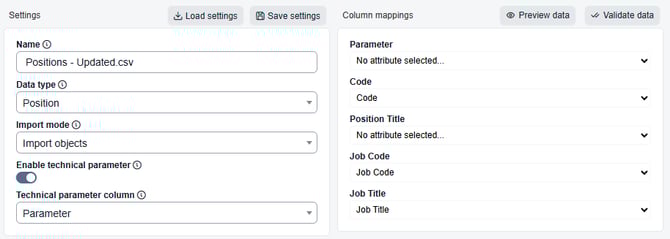
Technical Parameters
-
Technical Parameters can be used to control how objects are imported. There are currently two parameters which can be set in a designated column of your additional data:
-
REPLACE - Set this value to replace existing objects during import.
-
DELETE - Set this value to delete existing objects during import
-
REPLACE & DELETE target the entire record and all attributes - use with caution
-
These options allow you to perform mass delete/replace actions.
-
Use ‘Technical parameter column’ to set the column in your CSV which contains the technical parameter.
-
For a row in your CSV file, if the technical parameter is empty the behaviour will default to a regular addition import (create a new object) if the object doesn’t already exist.
Once you have the desired settings configured, you can select ‘Save Settings’ to make them reusable via ‘Load Settings’ the next time you import data. This is individual to each user.
Data Mapping
Next, you can map the attributes from your CSV file to the org.manager fields.
Keep in mind that Navigo will set the list of fields that can be mapped. Should a field not be available in the drop down selection, please request additions to Navigo via an authorised contact.
Data Validation
Once your field mapping is complete, you may wish to validate data to check for any errors or conflicts. Do this via ‘Validate data’ in the top right of the menu. If you see ‘no validation messages’ this indicates your data has been read without any errors.
If you do see issues, the description will describe exactly what is causing the error. Take relevant steps to address the validations issues before your data import.

Import Data
Once you have completed your mapping, setting configuration & data validation your are ready to import the data.
When you select ‘Import’ the import will begin & may vary in time depending on the quantity of records you are processing.
Once completed, you will get confirmation of any errors. Your changes can now be found in your organisational chart.
Bulk updating positions with shared attributes
You can use ‘Import Attributes’ to target a large number of objects for bulk updates.
You can use a singular row in a CSV file to target all objects with a shared attribute (e.g. Department, Division, Cost Centre etc).
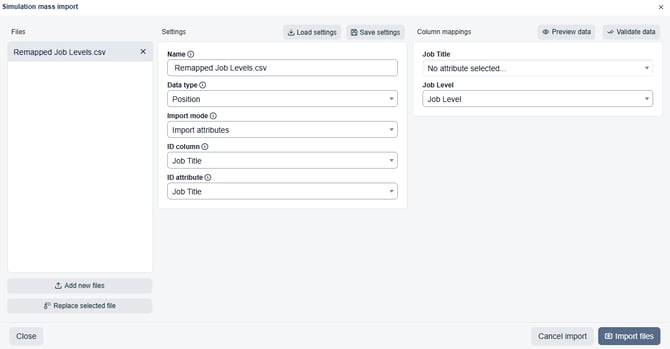
Below is an example of updating ‘Job Level' based on shared ‘Job Title’ attributes: