-2.png?width=221&height=60&name=Navigo_Logo_High_Res%20(1)-2.png)
PDF/PowerPoint File
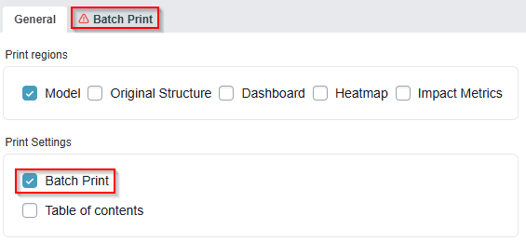
Click on the print icon under “Print & Export” in the toolbar. You can choose to either Print to PDF or PowerPoint. There are different export options when printing:
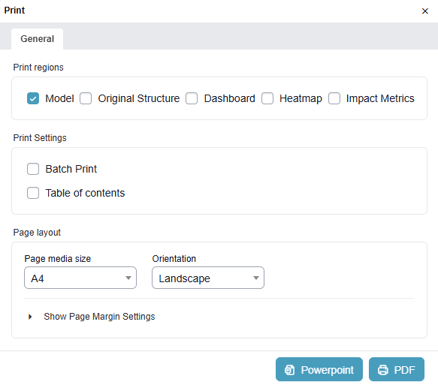
Batch Print: When this is selected, the new Batch Print option appears:
Selection sets: allows you to create a list of favourite Batch Print formats (i.e. if you regularly print a certain Department, you can Save your criteria so you can then pick it from this list, rather than recreate it over again).
-
Tick boxes will appear against each Department/Position. Select what you wish to print.
-
Include child nodes (visible when the mouse is moved over an object): includes all of the objects within the selected reporting hierarchy).
PNG File/Screenshot
The PNG file or Copy to Clipboard will allow you to download a copy of the current view and is useful for inserting the image directly into a Presentation or Consultation Pack. It will download to your local PC.