-2.png?width=221&height=60&name=Navigo_Logo_High_Res%20(1)-2.png)
Prerequisites
Ensure you have modelling enabled before following this guide. When in Modelling mode, the action icons will appear above your Org Chart boxes.
Creating a new object
Depending on what structure you are modelling (e.g. Position Structure, Business Unit Structure, Divisions) you will be able to create new objects in your model.
In this example we will be using the Position Hierarchy view.
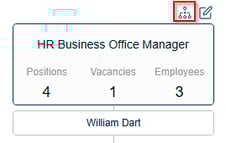
To create a new position, select the ‘Create New Position’ icon highlighted below.
The new position will be created, directly reporting to the position where you clicked the “Create New Position” icon. The position can still be moved accordingly after creation.
A pop up will appear prompting you to fill out certain fields to create the new position. This screen is configurable to include:
-
Drop down lists using your data (i.e. drop down lists for Position Titles, Job Grades etc). This helps maintain data integrity by preventing free text entry.
-
Mandatory fields - fields that must be populated when creating a new object.
-
Enable editability of any available data field.
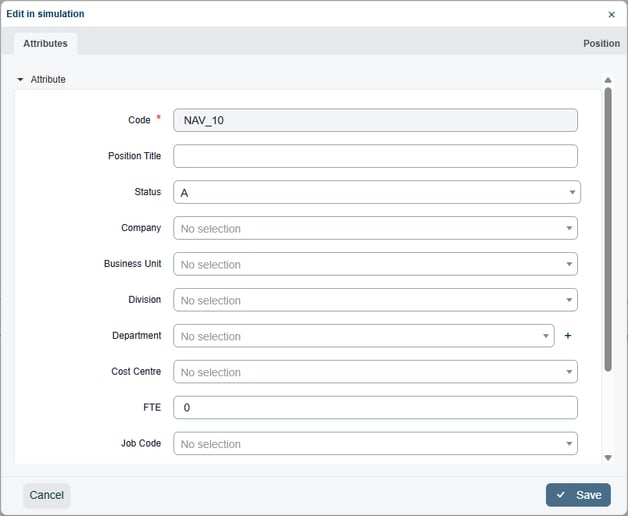
Lastly, select Save to bring the new position into your model.