-2.png?width=221&height=60&name=Navigo_Logo_High_Res%20(1)-2.png)
Models and Simulations
A Model (also referred to as a Simulation) is a sandbox copy of your organizational structure. It allows users to safely modify reporting lines, assignments, and attributes without affecting live data.
Models are private by default; they are created by the user and are not shared unless specifically configured.
How to Create a New Model
There are two ways to create a model within your environment, depending on your specific needs:
Using the Toolbar Quick Action
Best for: Quick, localized modeling of a specific department.
-
Scope: Creates a copy of the structure from the selected object downwards.
-
Speed: Generation may take slightly longer as it filters the specific branch.
-
Access: Accessible directly from your active Org Chart screen.
Via the Overview Window
Best for: Managing multiple scenarios and modelling the entire organization.
-
Scope: Creates a model of the entire organizational structure (from the top object down).
-
Speed: Faster generation times and provides immediate access to advanced simulation tools.
-
Oversight: Allows you to view and manage all existing models in one place.
|
Feature |
Toolbar Quick Action |
Overview Window |
|
Best For |
Quick edits to a specific branch. |
Full-scale org changes. |
|
Scope |
Selected object & its subordinates. |
Entire organizational structure. |
|
Speed |
Moderate. |
Faster generation. |
Steps
Creating a Model using the Toolbar Quick Action
-
From your chart view, select the Model Creation button as shown below.

-
After this, you will be presented the model creation menu where you can specify the name of your model, relevant comments, desired data snapshot & relevant perspective.
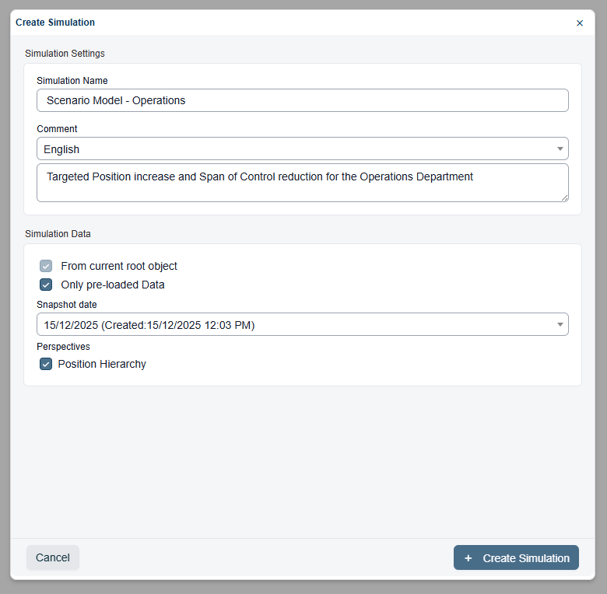
-
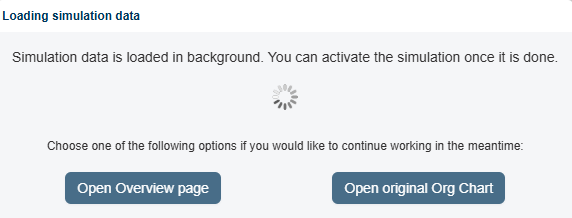
Click create. The generation time will vary based on the snapshot date and whether pre-loaded data is used.
Creating a Model via the 'Overview Window'
-
Open the overview window using the icon in the toolbar.
-
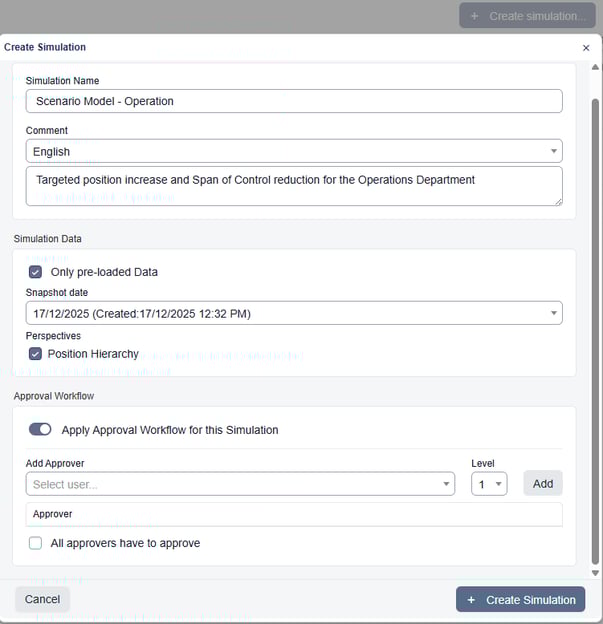
Create a new model using the ‘Create Simulation’ button, then configure your simulation settings accordingly.
-
Select ‘Create Simulation’ to generate your Model - again, loading times may vary depending on the selected data snapshot.
Additional Settings
Naming and Descriptions
-
Naming: Use identifiable conventions relevant to the model's purpose (e.g., "Q3_Restructure_Finance").
-
Comments: Use this field to document the modelling process, intended outcomes, or approval deadlines.
Data Snapshots
-
Snapshot Selection: Choose the point-in-time data you wish to model. You can select previous captures or future-dated snapshots from the dropdown list.
-
Pre-loaded Data: Whenever possible, use pre-loaded data already available in the environment. Disabling this may significantly increase model creation times.
Perspectives
Select the perspective that aligns with your goals. For example, use a Position-based Perspective for hierarchy changes, or an Department Perspective for departmental shifts.
Approval Workflows
You can enable an approval workflow to ensure all model changes are reviewed before being written back to your SuccessFactors environment.
-
Collaborators: Add specific users as reviewers.
-
Logic: Specify whether the model requires approval from all designated users or just a single representative.