-2.png?width=221&height=60&name=Navigo_Logo_High_Res%20(1)-2.png)
When you work in a model, org.manager keeps two separate records of what you have done.
The Model Change Report compares your model against the data set it was built from and shows how the two now differ. The Model Audit Log records each action as you perform it, in order, with the user who performed it and the time.
In short, the Model Change Report shows you the net result, which is how your model differs from its source data right now. The Model Audit Log shows you the steps taken to get there, who took them and when.
The difference matters more than it sounds. If a position is moved twice, the audit log holds two entries while the change report shows a single difference. If it is moved and then moved back, the audit log holds both moves and the change report shows nothing at all, because the model once again matches its source data.
Both reports are opened from the Windows & Reports group in the toolbar. Both are available only when modelling is enabled and you have a model selected.
When to use each
| You need to | Use |
| Hand a summary of the proposed structure to a stakeholder | Model Change Report |
| Produce a file to load back into your HRIS | Model Change Report, or an export profile. |
| See every attribute that differs, across the whole model | Model Change Report |
| Find the previous value of an attribute | Model Change Report |
| Find out who made a change, and when | Model Audit Log |
| Read a reporting line change in plain language | Model Audit Log, which names the old and new manager. The Model Change Report reports the same change as a Source ID |
| Reconstruct the order changes were made in, or find work that was later undone | Model Audit Log |
| Answer an internal audit or governance question about a reorganisation | Model Audit Log |
Model Change Report
Open it from Windows & Reports in the toolbar.
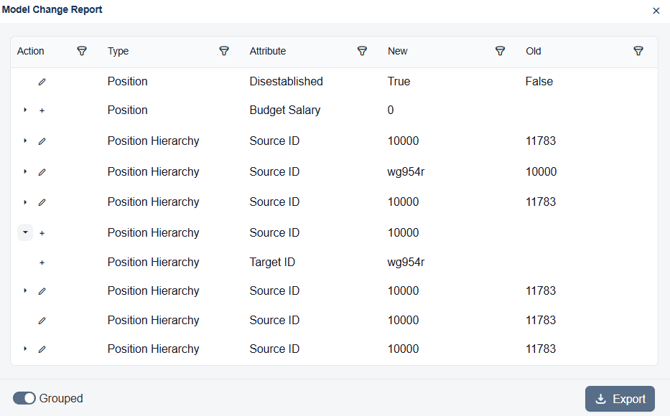
The report lists one row per attribute that differs from the base data set. Each row shows:
| Column | What it holds |
| Action | An icon showing whether the object is New, Changed or Deleted |
| Type | The object affected, such as Position, Employee, Holder of Position or Position Hierarchy |
| Attribute | The individual field that differs |
| New | The value in your model |
| Old | The value in the base data set |
Expand a row using the arrow at the left to see every attribute for that object.
Structural changes appear as a change to an identifier rather than to a name. Moving an employee to a different manager, for example, is reported as a change to the Source ID of their Holder of Position record. To read the same change with the positions named, use the Model Audit Log.
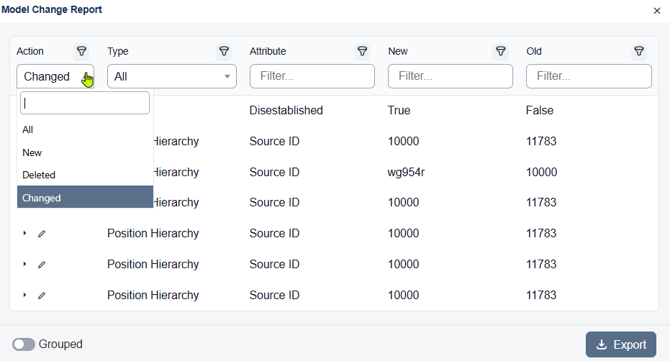
Filtering. Every column filters. Action and Type are drop-down lists, and Attribute, New and Old accept free text. Filters combine, so you can narrow to, for example, every Position where the Action is Changed.
Grouped. Use the Grouped toggle at the bottom left to change how rows are arranged.
Model Audit Log
Open it from Windows & Reports in the toolbar.
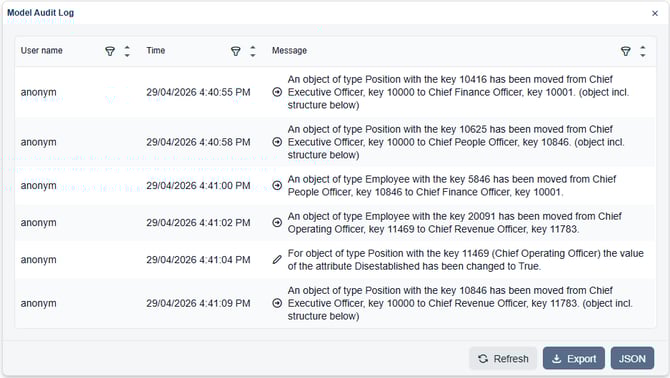
The log lists one row per action, in the order the actions occurred:
| Column | What it holds |
| User name | A unique identifier for the person who made the change. See the note below |
| Time | The date and time the action was recorded |
| Message | A description of the action, including the objects involved and their keys |
Messages name both sides of a structural change. A move is recorded as the object that moved, the position it moved from and the position it moved to, each with its key. For a change to an attribute the message records the new value only, so where you need the previous value, use the Model Change Report.
A single piece of work usually produces more than one entry. Creating an employee and attaching them to a position, for example, is recorded as two entries: the object being created, and the object being added to its position.
User names depend on access protection. The User name column is taken from the signed-in session, so it identifies the individual only where the chart requires users to sign in. On an output published without access protection there is no signed-in user, and every entry is recorded as anonym. If you need changes attributed to named individuals, the output must have authentication enabled.
The log is kept per model, for the life of that model. Each model has its own audit log, so switching to a different model shows that model history. Deleting a model deletes its audit log with it. A model created with Copy Model inherits the audit log of the model it was copied from.
Sharing. A user you share a model with can view that model audit log.
Filtering and sorting. Each column can be filtered, and User name and Time can also be sorted ascending or descending.
Refresh. The log is a snapshot taken when the window opens. Changes you make while the window is open do not appear in it until you select Refresh.
Note that the Model Audit Log records changes made within a model. It is separate from Undo and Redo, which apply only to the current session. See Undo or Redo Changes.
Using them together
Most questions during a reorganisation need both reports. The Model Change Report answers what the proposed structure looks like compared with today. The Model Audit Log answers how it got that way, and who decided it.
Where a change report row is hard to read on its own, such as a Source ID that has changed, filtering the audit log to the same objects will usually describe the same change in words, with the user and the time attached.
Exporting either report
Both reports export. Use Export in the Model Change Report, and Export or JSON in the Model Audit Log.
| Model Change Report | Model Audit Log | |
| Formats | CSV | CSV and JSON |
| Layout | One row per object, with a column for each attribute and a matching OLD_ column | One row per action, matching the columns on screen |
| Sections | Separate blocks for Employee, Position and Holder of Position | None |
The Model Change Report file is not laid out like the window. On screen the report lists one row per changed attribute. In the file each object occupies a single row, with every attribute as its own column and its previous value in the matching OLD_ column. Object types that have no changes still appear, as a heading row with no data beneath it.
Both files use a semicolon as the delimiter. Depending on your regional settings, Excel may place every value in a single column when you open the file directly. Use Data, then From Text/CSV, and set the delimiter to semicolon instead. Timestamps in the exported audit log may also use a different date format from the one shown on screen.
Security
An exported report is an ordinary file on your computer. Once it has been saved it is outside org.manager, and the restrictions that apply inside the application no longer apply to it. See Role Based Security.
Exports from both reports can contain more than the window displays. The Model Change Report file carries every attribute configured for each object type, including its previous value, which may include salary, budget salary and other sensitive fields that are not shown in the report window. The Model Audit Log includes the values involved in each action within the message text, so the same fields can appear there.
Before sharing an exported report, open it and confirm it contains only what the recipient should see.