-2.png?width=221&height=60&name=Navigo_Logo_High_Res%20(1)-2.png)
Overview
This article supports your technical team during the deployment of org.manager — an organisational charting and restructure modelling extension for SAP SuccessFactors, hosted on SAP Business Technology Platform (BTP).
org.manager integrates with your SAP SuccessFactors environment via the OData API user (technical user). It is hosted on the Ingentis SAP BTP tenant in Amazon Web Services (AWS) data centres in Sydney, Australia.
Environments in Scope
All tasks in this guide must be completed in both environments:
- Test / UAT environment
- Production environment
Solution Architecture Overview
org.manager is a Java-based application deployed on the Ingentis SAP Business Technology Platform (BTP) tenancy, hosted in the Amazon Web Services (AWS) data centre in Sydney, Australia. It communicates with our SAP SuccessFactors instance over HTTPS using OAuth2 SAML Bearer Assertion.
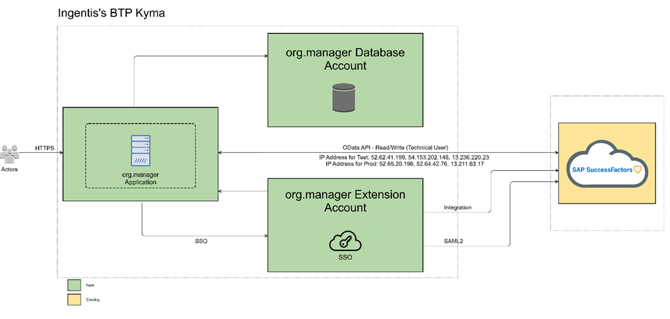
org.manager Architecture
org.manager runs on Kyma runtime within the Ingentis BTP provider account. The solution is logically divided into three components:
- Provider Account (Kyma Runtime): Hosts the org.manager application, shared across all Ingentis tenants.
- Extension Account (per customer instance): One extension account is created per registered SuccessFactors instance. The SAP SuccessFactors Extensibility service establishes an OData destination. The XSUAA service handles Single Sign-On (SSO) via SAML2.
Database Account (SAP HANA Cloud): Each tenant has a dedicated JDBC connection with a separate database schema and credentials, stored as Kubernetes secrets.
Integration & Authentication Flow
org.manager follows this integration pattern:
- Users authenticate via SAP SuccessFactors (SSO via SAML2 / XSUAA). No separate login is required for org.manager.
- User roles are resolved from SuccessFactors to determine application permissions. Roles must be created in SuccessFactors.
- org.manager communicates with SuccessFactors via the OData API over HTTPS, authenticated via OAuth2 SAML Bearer Assertion using the Technical User credentials.
- Sessions have a 30-minute idle timeout and a 12-hour maximum duration. Role changes require the user to log out and back in.
Data Security and Encryption
Data security is managed at the SAP BTP platform level:
- Data at Rest: SAP HANA Cloud native encryption (AES-256). Data volume and redo log encryption are applied by default.
- Data in Transit: All communication between org.manager and SuccessFactors is over HTTPS. Database connections are secured via TLS 1.2.
- Platform Security: SAP BTP data centres hold ISO 27001, SOC 1, SOC 2, C5, CSA STAR and ISO 22301 certifications.
- Application Logs: Stored securely within SAP BTP for 90 days. Configuration logs are retained for the duration of the contract.
- Firewall: SAP is responsible for implementing and monitoring firewall rules on BTP. The only customer action required is IP whitelisting for OData API access, if enforced.
Information Required from you
Before Navigo can generate an integration, token or begin the deployment process, the following information must be provided for each SAP SuccessFactors instance.
|
Required Item |
Details |
|
SuccessFactors Company ID |
The Company ID for the Test and Production instances respectively. |
|
Landscape URL |
The login URL for each SuccessFactors instance (e.g. https://[tenant].successfactors.com). |
|
Extension Center Status |
Confirm whether Extension Center (SAP BTP integration) is enabled in each instance. |
|
Technical User ID (org.manager) |
The User ID (not login name) of the technical user created for org.manager in each instance. |
|
IP Whitelisting Status (optional) |
As an added layer of security, you may block the technical user to have restricted access. Org.manager IP address described in the following section. |
Note: Navigo requires the User ID, not the login name or username. The Technical User authenticates via an OAuth2 flow that requires the User ID specifically.
Users and Roles
The following users and roles must be configured in SAP SuccessFactors prior to deployment. These users must be set up in both the Test and Production environments.
The naming convention for roles and users is flexible; the names provided below are indicative only.
Technical User
The technical user is a local SAP user created specifically for API access. It does not require login access to the SuccessFactors admin panel. A separate technical user is required for each environment — two in total:
- org.manager Technical User – Test environment
- org.manager Technical User – Production environment
Note: The technical user only needs access to the objects and fields that org.manager will read and write, as outlined in the Detailed Design Document. Do not grant broader administrative access.
Technical User - required permissions
A technical user is required to access the OData API to read and write data. Therefore, no login to the SFSF admin panel is required. The technical user needs read and write access to all objects and fields that will be visualised in org.manager. The following permissions are required so that the OM can run correctly:
|
Permission Category |
Required Permission(s) |
|
Manage Integration Tools |
OData API To-Do External Categories Import (Required to create notifications within SFSF, e.g., when a user was invited to a simulation.) |
|
Manage System Properties |
Picklist Management and Picklists Mappings Set Up (This permission is required to show possible picklist values) |
|
Metadata Framework |
Access to non-secured objects (This permission is required to show possible picklist values) Admin access to MDF OData API (This permission is required to make use of the snapshot pagination parameter. Without that parameter, invalid data may be caught from SFSF on large data sets) |
In addition, the technical user needs read and write access to all objects and fields that should be displayed and written to via the writeback feature. The following permissions are best practice for building a basic chart. Please feel free to add / edit information according to your requirements-
- FOBusinessUnit: MDF Foundation Objects > Business Unit
- FODivision: MDF Foundation Objects > Division
- FODepartment: MDF Foundation Objects > Department
- Position: Miscellaneous Permissions > Position
- EmpJob: Employee Central Effective Dated Entities > Job Information Actions
- EmpEmployment: Employee Data > Employment Details MSS
- PerPerson: Employee Central API > Employee Central HRIS OData API (read-only)
- PerPersonal: Employee Central Effective Dated Entities > Personal Information
- User:
- Employee Data > Employee Profile
- Manage User > Employee Export
- General User Permission > Company Info Access > User Search
The write permissions for the technical user are required for-
- SuccessFactors notifications in People Connect
- Live Sort – org.manager feature where order of the objects can be changed via a sort attribute and these changes are written back live via the OData API i.e. the technical user.
Support / Configuration User (Navigo Access)
A configuration user is required to allow the Navigo support team to view, verify and troubleshoot application output within SuccessFactors. Login access to the SuccessFactors admin panel is required for this user.
This user is linked to nominated Navigo support personnel on your project. The following permissions are recommended:
|
Permission Category |
Required Permission(s) |
|
Manage Integration Tools |
|
|
Metadata Framework (Employee Central only) |
|
As part of the ongoing support arrangement, the support user will also receive the role that enables export of MDF definitions for troubleshooting and configuration validation.
For the Navigo team to properly implement the tool, to understand your data, ensure adherence to project timelines, and providing trainings, please create a generic user that can be used across the Navigo team.
If creating the generic user is a limitation, we would recommend creating personalised accounts instead, please set up three users with the required permissions (one for the Solutions Architect, one for the backup Architect, one for the Head of Org Design Solutions).
Shell Role for application access
Any user who needs to access org.manager must have a shell role assigned to them in SuccessFactors. This role carries no specific permissions — it serves solely to grant access to the application.
If you have no preference, Navigo recommends the following role name:
- Navigo-Orgmanager
Note: Ensure a Navigo user role is active in every environment from the outset of the project. This gives the Navigo team immediate visibility to validate and troubleshoot configuration as deployment progresses.
During the initial testing phase, this role should be assigned to the relevant Navigo and customer project team members who will be testing the application.
Further roles for access restrictions
Setting up roles in SuccessFactors is required for configuring field level security (access protection) and some simulation dependent features like access to data comparison, preloaded data sets, self-service view etc.
We would require the exact role name for setting this up in org.manager.
Alternatively, existing SuccessFactors roles can be used to grant access in org.manager. For this approach, we recommend sharing a role export with Navigo that includes field-level permissions — particularly useful if field-level access protection is to be applied.
Note: When using existing SuccessFactors roles may result in additional permissions being granted to the user.
IP Whitelisting
If your organisation enforces OData API access control via IP whitelisting in SuccessFactors, the following IP addresses must be whitelisted to allow org.manager to communicate with SuccessFactors.
|
Test Environment |
Production Environment |
|
52.62.41.199 |
52.65.20.196 |
|
54.153.202.148 |
52.64.42.76 |
|
13.236.220.23 |
13.211.63.17 |
Note: These IP addresses correspond to the Australia (Sydney) AWS region — Ingentis BTP egress IPs. Please raise the whitelisting request with your SAP administrator or MSP ahead of the token activation step to avoid delays.
If your organisation does not enforce IP-based API restrictions, no action is required for this section. However, it is recommended that the technical user created previously is restricted to just these IP’s for an added layer of protection.
Deployment Process
The deployment process must be completed for both environments (Test and Production). The steps below are sequential — Navigo cannot commence configuration until all pre-conditions are confirmed.
Step 1 – Provide System Details
Provide Navigo with the SuccessFactors Company ID and Landscape URL for both environments. Refer to the full list of required information.
- Responsible: Your ICT / SAP Applications team
- Output: Confirmed Company ID and Landscape URL for each environment
Step 2 – Navigo Issues Integration Token
Upon receipt of confirmed system details, Navigo generates and provides an integration token for each environment. Each token is valid for 7 days from the date of issue.
- Responsible: Navigo
- Output: Integration tokens for Test and Production environments
Note: Tokens expire 7 days after issue. Coordinate with Navigo to ensure the token is added to Extension Center promptly. If a token expires before activation, a new one will need to be issued.
Step 3 – Activate Integration Token in Extension Center
For each SuccessFactors instance (Test and Production), complete the following steps:
- Log in to SAP SuccessFactors as an administrator.
- Navigate to Admin Center → Extension Center.
- Select the Extensions on SAP BTP tab.
- Under Add Integration with SAP BTP, enter the integration token provided by Navigo and click Add.
- Wait until the linked sub-account displays a status of Integrated.
Step 4 – Create Technical Users
Create the org.manager technical users in SuccessFactors as described in the previous section. Two users are required — one for Test and one for Production. Assign the correct Permission Role as per the previous section.
Once created, provide Navigo with the User ID (not login name) for each technical user, specifying which environment each belongs to.
- Responsible: Your ICT / SAP Applications team
Step 5 – Configure Support User Access
Assign the recommended configuration user permissions to the Navigo support user accounts in all environments. Navigo will also share an updated MDF definition at this stage for import into SuccessFactors.
Step 6 – Create Shell Role and Assign to Support user
Create the Navigo-Orgmanager shell role (or your preferred name) in SuccessFactors. Assign this role to the nominated test users in all environments.
Note: Ensure a Navigo team member is assigned the shell role in the Test environment as early as possible. This is required for Navigo to verify the deployment and troubleshoot any issues during configuration.
- Responsible: Your ICT / SAP Applications team
Step 7 – Navigo Commences Deployment
Once all steps above are confirmed complete and the readiness checklist has been returned to Navigo, the Navigo team will commence technical deployment and configuration of org.manager.
Pre Deployment Readiness Checklist
SuccessFactors Environment
|
☐ |
Extension Center (SAP BTP integration) is enabled in the Test SuccessFactors environment. |
|
☐ |
Extension Center (SAP BTP integration) is enabled in the Production SuccessFactors environment. |
|
☐ |
SuccessFactors Company ID confirmed for Test environment and provided to Navigo. |
|
☐ |
SuccessFactors Company ID confirmed for Production environment and provided to Navigo. |
|
☐ |
Landscape URL confirmed for Test environment and provided to Navigo. |
|
☐ |
Landscape URL confirmed for Production environment and provided to Navigo. |
Integration Token
|
☐ |
org.manager integration token (Test) entered into Extension Center Test environment– status shows 'Integrated'. |
|
☐ |
org.manager integration token (Production) entered into Extension Center Production environment – status shows 'Integrated'. |
Technical Users
|
☐ |
org.manager Technical User created in Test environment with required permissions. |
|
☐ |
org.manager Technical User ID (Test) provided to Navigo. |
|
☐ |
org.manager Technical User created in Production environment with required permissions |
|
☐ |
org.manager Technical User ID (Production) provided to Navigo. |
Shell Role and Provisioning Customer Support user
|
☐ |
Shell role Navigo-Orgmanager created in SuccessFactors (all environments). |
|
☐ |
Shell role assigned to Navigo support user(s) in all environments. |
|
☐ |
Shell role assigned to nominated customer test users in Test environment. |
|
☐ |
Shell role assigned to all production users in Production environment. |
Support Access and IP Whitelisting
|
☐ |
Configuration user permissions assigned to Navigo support user(s) in all environments. |
|
☐ |
MDF definition received from Navigo and imported into SuccessFactors. |
|
☐ |
IP whitelisting for OData API completed in Test environment (if applicable). |
|
☐ |
IP whitelisting for OData API completed in Production environment (if applicable). |
Support and Contacts
For any questions regarding the tasks in this guide, please contact your Navigo project representative.
|
Contact Type |
Details |
|
Navigo Project Contact |
[To be confirmed by Navigo project team] |
|
Technical Queries |
[To be confirmed by Navigo project team] |
|
Navigo Website |
navigo.com.au |
|
Phone |
+61 3 9879 4060 |
|
Ingentis System Status Page |
https://status.ingentis.com |
|
Ingentis Support Portal |
https://www.ingentis.de/en/support/ |
The Ingentis System Status Page provides real-time visibility of system availability, planned maintenance and unplanned downtime. Customers are encouraged to bookmark this page.