-2.png?width=221&height=60&name=Navigo_Logo_High_Res%20(1)-2.png)
Comparing Workforce Costs Across Scenarios
org.manager lets you compare the workforce cost of one organisational design scenario against another, or against your current structure, so you can see exactly what a proposed change adds or removes before you commit to it. The comparison runs on cost metrics held against each position (Opex, Capex, Max Amount and Min Amount in the example below) and rolls them up to business unit level.
You can compare in two ways. Compare a scenario against its source data to see the full cost impact of a future-state design against the live structure, or compare two scenarios against each other to weigh up alternative designs side by side.
Before you start
You need a baseline and at least one scenario to compare it with. The baseline is usually the model's source data, the live structure as at the last data refresh. A scenario is either a separate model you have created from that source (see Copy or Duplicate an Existing Model) or a simulation saved within the model itself. Make sure the cost metrics you want to compare are populated in both. If you have changed positions or salaries since the metrics were last calculated, refresh them first (see Updating Metrics in Your Model).
Open the comparison
Open the model you want to use as the baseline, then open the “Overview Window”. Select “Comparison” to create a new comparison tab. The source data is shown on the left and you choose the “Compare target” on the right, either another model or a saved simulation. Give the comparison a “Title” so you can find it again, then click “Save”.
The comparison lists every object that differs between the two structures. For a position with changed cost data you see one row per attribute, showing the attribute name (for example Opex or Capex), the old value from the source and the new value in the target. Use the “Change type” filter to show only new, changed or removed objects, and the “Name”, “ID” and “Display” filters to narrow the list to one business unit or one position. Click “Collapse/Expand” to switch between the summary by object and the detail by attribute.
.png?width=670&height=177&name=image%20(1).png)
Each row has a “Comment/Finished” field and an “Is processed” checkbox. Use these to record your review of each change and track which differences have been signed off. The count at the object level (for example 0 / 4) shows how many of that position's changes you have processed.
View cost totals by business unit
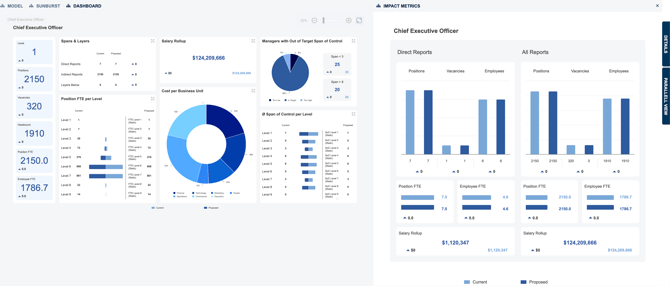
To see the overall cost difference rather than the position-level detail, open the configured cost dashboard for each model. The dashboard sums the cost metrics (Opex, Capex and any other cost fields configured for your organisation) by org unit, so you can place the baseline and scenario figures side by side and read the net change for each business unit and for the organisation as a whole. The dashboards available to you depend on how org.manager was configured during your implementation. If you need an additional cost view, contact Navigo Support.
Export the Delta report
To work with the comparison outside org.manager, export it as a Delta report. From the comparison tab, use the export action to save the full list of differences to XLSX or CSV. The export contains one row per changed attribute with the object type, ID, modification type (New, Changed or Deleted), attribute code and display name, old value, new value and your comments and processed flag.
.png?width=670&height=109&name=image%20(2).png)
Because every cost change is a row with an old and a new value, you can total the “NewValue” column by business unit in Excel, or load the file into Power BI or your finance system, to produce the cost comparison in whatever format your decision makers need. The “Compare charts” icon on each row opens the two structures in Parallel View & Split Screen so you can see the positions behind a number.
Tips
Attribute names and the cost fields available depend on your organisation's configuration and source system. Your metric names may differ from the Opex and Capex examples shown here.
Comparisons are saved with the model, so a shared model (see Sharing a model) carries its comparisons with it. Reviewers can open the same comparison tab and pick up where you left off using the processed flags.
If you are comparing several scenarios, create one comparison per scenario against the same baseline. The exports then share the same structure and can be combined in a single workbook.