-2.png?width=221&height=60&name=Navigo_Logo_High_Res%20(1)-2.png)
What's new?
1. More control over PDF and PowerPoint exports
Shape your printed charts to suit the audience.
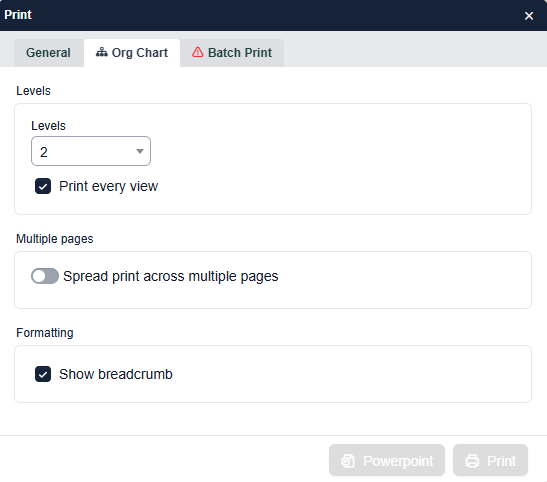
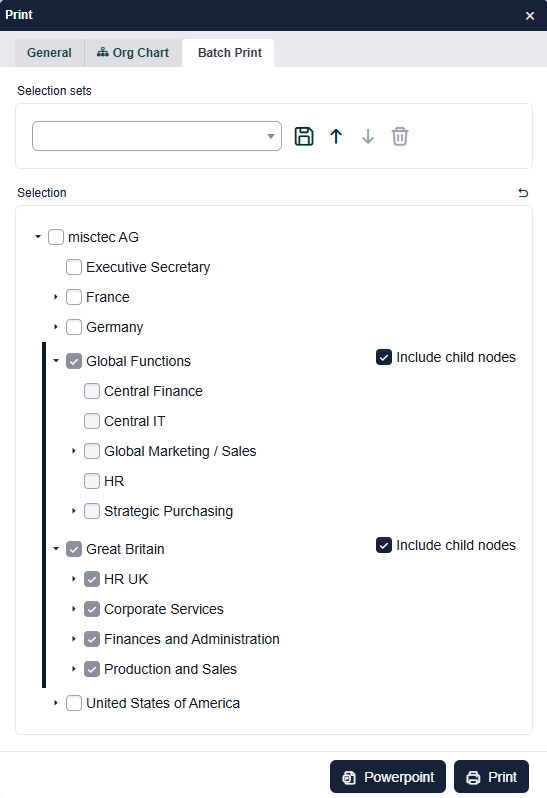
The Org Chart tab in the Print dialog has new options for tailoring your PDF and PowerPoint exports.
- Show breadcrumb: add a breadcrumb trail to each page, so readers can see where that part of the organisation sits in the wider structure.
- Levels for each page: set how many levels to print and tick Print every view, so each view in the chart gets its own page at the level of detail you chose.
- More room to pick objects: a new button expands the object selection area in Batch Print, making it easier to find and select objects in large structures. The batch settings are hidden while the area is expanded, and the same button restores the normal view.
The expanded object selection in Batch Print is available straight away. Breadcrumbs and levels for each page are switched on in your chart configuration, so get in touch with the Navigo support team and we'll set them up for you.
2. Share a simulation with a single link
Get colleagues into the right simulation in one click.
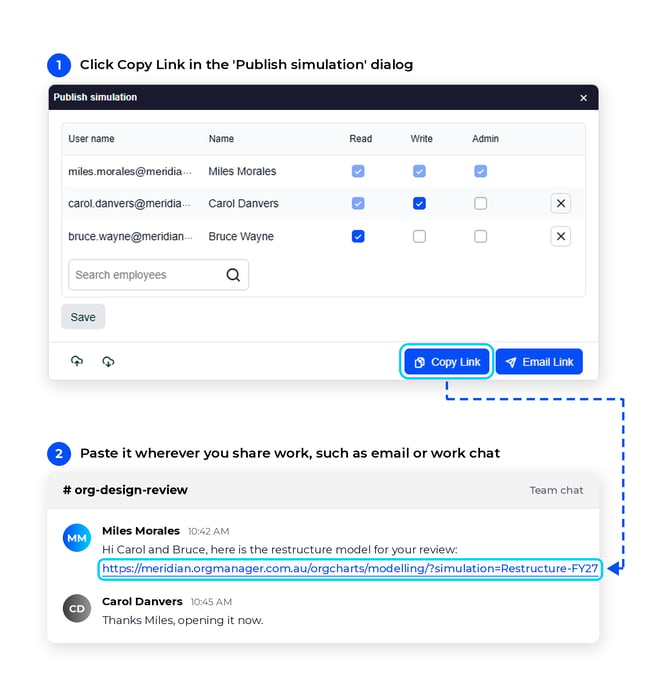
The Publish simulation dialog now has a Copy link button. It copies a direct link to the simulation, so you can paste it into Teams, an email or wherever your team works.
- Straight to the work: the link takes people directly into the simulation, with no searching required.
- Access stays the same: only people who already have access to the simulation can open it. Sharing the link doesn't change anyone's permissions.
- Send still works: the existing Send option is unchanged if you'd rather invite people that way.
3. Link several relationships in one go
Choosing relationship types when you link a new element is now quicker and clearer.
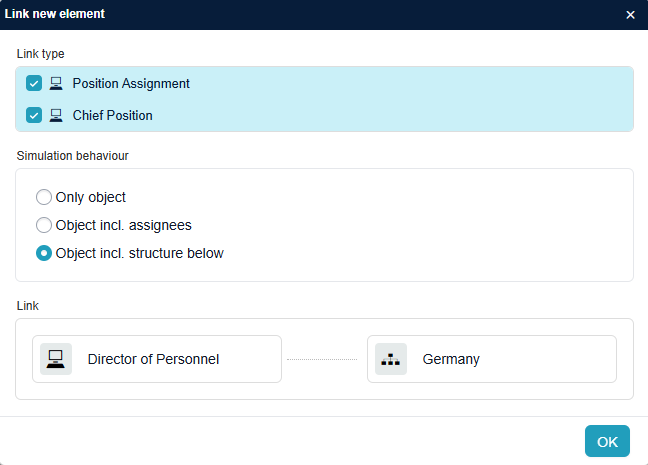
The Link new element dialog now shows a checkbox next to each relationship type, so it's obvious you can pick more than one. No keyboard shortcuts needed.
- Tick or click: select or deselect a relationship type by ticking its checkbox or clicking anywhere on its row.
- Applied together: every relationship you select is applied at once when you confirm the dialog.
- One less click: when only one relationship type is available, it's selected for you automatically.
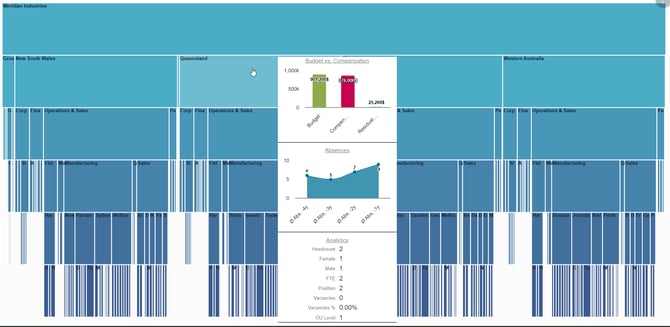
4. More detail at a glance in complex chart like sunburst
See extra information about an object without leaving the sunburst.
Sunburst charts can now show a separate box as a tooltip for the selected object. It gives you more detail about that part of the organisation while keeping the chart itself clean and easy to read.
The tooltip box is set up in your chart configuration. Get in touch with the Navigo support team and we'll design it around the information you want to see.
Also in this release
- Faster drop-down lists in simulation dialogs: attributes with hundreds of values now open much faster in the Edit in simulation dialog. The list starts with the first 50 values in alphabetical order, and search still finds any value in the full list.
- Reset the zoom in one click: turning off Zoom to fit or Zoom to width now takes the chart back to its original view, with the top of the structure centred just as it was when you first opened it.
- Clearer input hints in simulation dialogs: fields that have guidance attached now show an info icon in the Edit in simulation dialog. Hover over the icon to see the hint.
- Fixes and improvements: this release also includes a number of bug fixes, along with security and performance improvements.
Want a hand with any of these features, or curious what they could do for your organisation?
Reach out to the Navigo support team and we'll get you sorted.